
Short answer
In Mail, attach the file and accept Mail Drop when it’s offered: Apple says it sends attachments up to 5 GB, and recipients have 30 days to download them. For a link without an email, share the file from iCloud Drive with Anyone with the link. For an Apple device nearby, use AirDrop.
Rather right-click the file and have the link on your clipboard? See how Ricly does it ↓
Four ways at a glance
| Method | Where | Limits | What the recipient needs | Price |
|---|---|---|---|---|
| Mail Drop | Mail, when you attach the file | Up to 5 GB; 30 days to download | The email | Built in |
| iCloud Drive | Finder › iCloud Drive › Share › Share a Link | The file must be in iCloud Drive; Apple gives no expiry for the link | The link | Built in |
| AirDrop | Share › AirDrop, or AirDrop in the Finder sidebar | Apple devices within 30 feet; best for a small selection of files | An Apple device nearby | Built in |
 Ricly Ricly | Right-click › Ricly › Upload & Share | Free: 1 GB online at a time, 3 links a day, 3 days. Pro: 20 GB, 30 days | The link, in any browser, no account | Free; Pro for more |
Send a large file with Mail Drop (built in)
- In Mail, write a new message and attach the file.
- When Mail offers to use Mail Drop, accept it.
- Address the message and send it.
What it does. Apple says Mail Drop sends attachments up to 5 GB, that recipients have 30 days to download them, and that they don’t count against your iCloud storage.
Good to know. Apple notes that uncompressed folders attached to a message might not go through Mail Drop: compress the folder first (Control-click it, then Compress).
Sources: Apple, Mail Drop limits, and Send attachments in Mail on Mac.
Share a link from iCloud Drive (built in)
- Open a Finder window and click iCloud Drive in the sidebar. Move the file there if it isn’t already.
- Select it, click the Share button, then choose Share a Link.
- Under Who can access, choose Anyone with the link; under Permissions, choose Can view or download.
- Click Copy Link, then paste it where you need it.
Good to know. Apple says the file must be in iCloud Drive to share it this way. To stop sharing, Control-click it and choose Manage Shared File, or move it out of iCloud Drive.
Steps from Apple: Use iCloud to share and collaborate on files and folders.
Send to a nearby Apple device with AirDrop (built in)
- Make sure both devices have Wi-Fi and Bluetooth turned on, within 30 feet (10 meters) of each other.
- Click the Share button and choose AirDrop, or click AirDrop in the Finder sidebar and drag the file onto the person.
- They accept it. On a Mac, some items land in the Downloads folder.
Good to know. Apple says AirDrop is best for sharing a small selection of files between devices.
Steps from Apple: Use AirDrop to send items to nearby Apple devices.
The right-click way
Send a large file with Ricly
- Install Ricly and open it. Turn on the Finder extension when it asks (one setting), then create your free account and verify your email address.
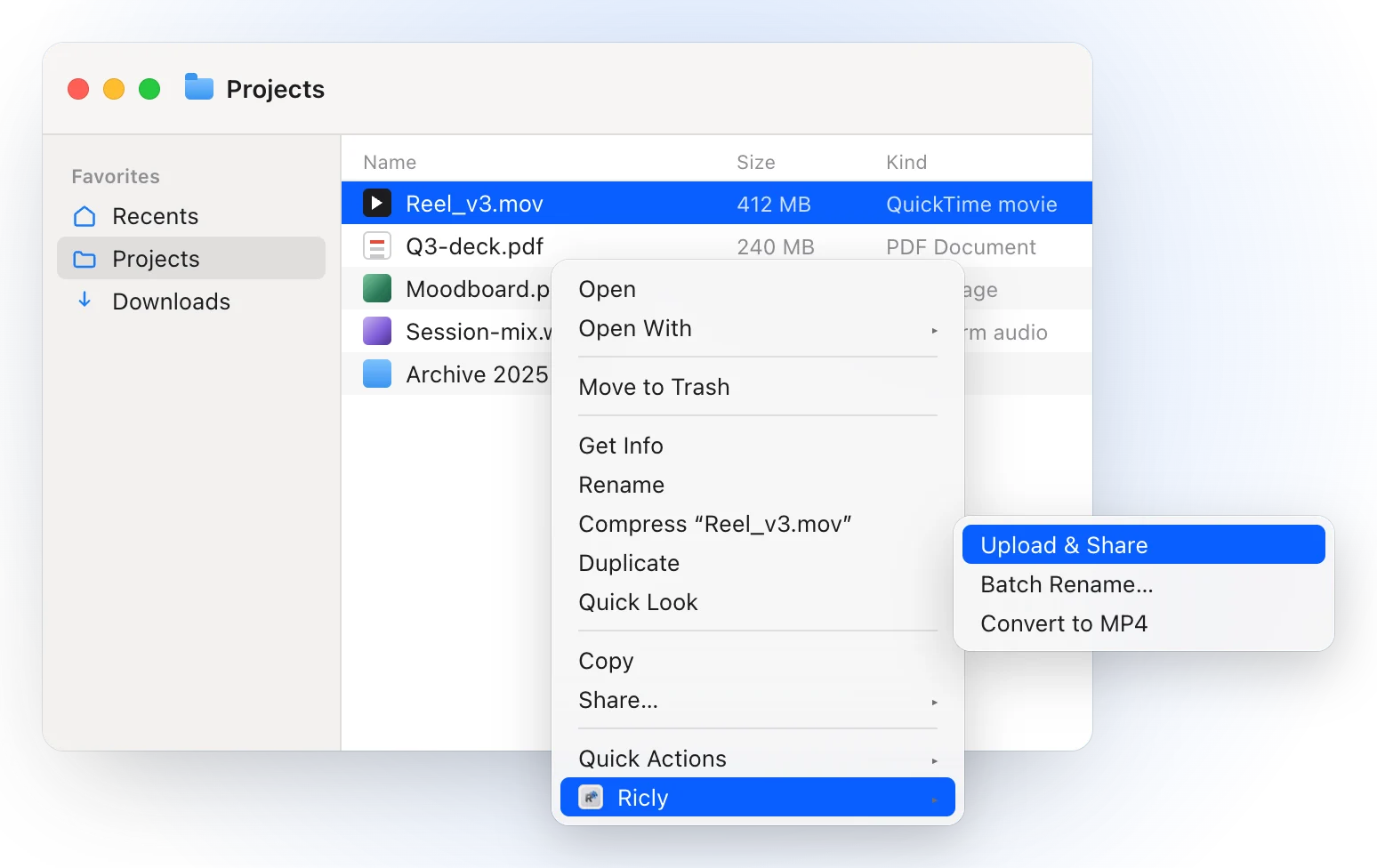
- In Finder, right-click the file or the folder and choose Ricly › Upload & Share (Upload & Share Lite on Free).
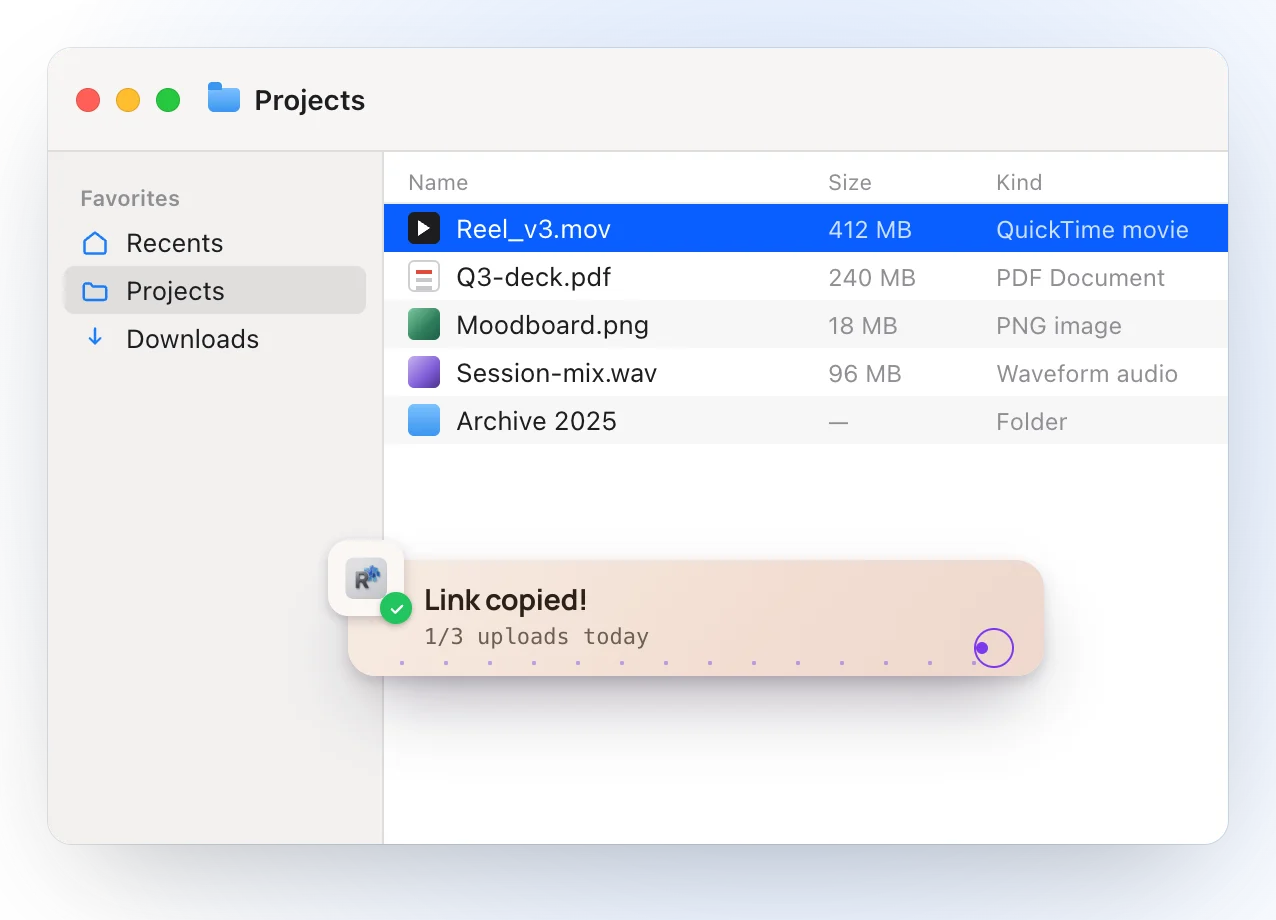
- When the upload finishes, the link is on your clipboard: paste it anywhere.
- The person you send it to opens the link in any browser, on a Mac, a Windows PC, Android or an iPhone, and downloads it with one button: no account, no app.
- A folder is zipped for you, and several files go under one link.
- If the Wi-Fi drops, Ricly waits up to two minutes and carries on; a file over about 134 MB travels in pieces and picks up from the last one.
- Shared Links, in the app, lists every live link, its time left and its downloads. Revoke one and it stops working right away.
- It’s the one Ricly tool that sends a file off your Mac: that file goes to Ricly storage, encrypted in transit, and nothing else in the folder is read or sent.
Where it falls short. On Free, you keep 1 GB online at a time, make up to 3 new links a day, and each link lasts 3 days; Pro goes to 20 GB and 30 days. Your email address has to be verified before your first link. It needs macOS 13 or later.
Make the file lighter first
A lighter file uses less of any limit, whichever way you send it. Compress a PDF or an image before it leaves, or convert a MOV to MP4: these guides show the built-in ways and Ricly’s.
Compress a PDF on a Mac →Compress images on a Mac →Convert MOV to MP4 on a Mac →
Which one should you use?
Sending large files from a Mac: common questions
How do I send a large file from my Mac?
With Mail Drop, attach it in Mail and accept Mail Drop: up to 5 GB, 30 days to download. With iCloud Drive, share a link to the file. With AirDrop, send it to an Apple device nearby. With Ricly, right-click it and paste the link.
How big a file can I send with Mail Drop?
Apple says up to 5 GB, with 30 days for recipients to download it, and a total Mail Drop limit of 1 TB. Attachments don’t count against your iCloud storage.
Can I send a large file from a Mac to a Windows PC?
Yes. With a Ricly link, the person opens it in any browser, on Windows, Android or an iPhone, and downloads the file without Ricly or an account.
Does the other person need an account?
Not with Ricly: they open the link and press one button, and they are never asked for an email address.
How do I send a folder?
Compress it first for Mail Drop, since Apple notes uncompressed folders might not go through. Ricly zips a folder for you before uploading. iCloud Drive can share a whole folder.
Is there a free way to send large files from a Mac?
Mail Drop, iCloud Drive and AirDrop are built in. Ricly’s Upload & Share is free for 1 GB online at a time and 3 new links a day.
Can I delete a link before it expires?
With Ricly, yes: open Shared Links in the app and revoke it, and it stops working right away. With iCloud Drive, stop sharing the file.
Upload & Share in Ricly →Compress a PDF on a Mac →Compress images on a Mac →