
Short answer
If the video is H.264, Apple says you can rename it: duplicate the file, then change .mov to .mp4. For other videos, Apple points to iMovie: export the movie as a file. QuickTime Player won’t do it: Apple says it doesn’t export movies as MP4 videos.
Rather right-click the MOV and get an MP4 beside it, whatever’s inside? See how Ricly does it ↓
Four ways at a glance
| Method | Where | What happens to the video | Many at once | Price |
|---|---|---|---|---|
| Rename | In the Finder: .mov to .mp4 | Nothing: the same file with a new extension (H.264 only, Apple says) | Rename each file | Built in |
| iMovie | Share › Export File | Encoded again, at the quality and resolution you choose | One project at a time | Free from Apple |
| Terminal | avconvert, built in | Encoded again (PresetHighestQuality) | With a script | Built in |
 Ricly Ricly | Right-click › Ricly › Convert to MP4 | Streams copied when they suit MP4; only what doesn’t is encoded again | Select them all, right-click once | Free, no monthly limit |
Can QuickTime Player convert MOV to MP4?
No. Apple says your movie is exported as a QuickTime movie (.mov) using the H.264 or HEVC codec, and that QuickTime Player doesn’t export movies as MP4 videos. Its File › Export As is still useful: choose a resolution, then Greater Compatibility, and you get a .mov in H.264, the codec Apple says you can rename.
Rename a MOV to MP4 (H.264 only)
- In the Finder, select the MOV, choose File › Get Info, and look under More Info: the codec should read H.264.
- Duplicate the file first if you want to keep the original.
- Change the extension from .mov to .mp4, then confirm the change.
What it does. Apple says the resolution and the file size stay the same, and that if the upload fails, you should use iMovie instead.
An iPhone video in HEVC? Export it from QuickTime Player first (File › Export As, a resolution, then Greater Compatibility) to get H.264, then rename it.
Steps from Apple: Convert a MOV file to MP4 on Mac.
Convert MOV to MP4 with iMovie (free from Apple)
- Create a new movie project in iMovie and import the MOV.
- Add the clip to the movie.
- Click the Share button, then choose Export File.
- Choose a Quality and a Resolution, click Next, choose where to save the MP4, then click Save.
What it does. It’s an export, so the video is encoded again. Apple notes that a lower quality or resolution makes a smaller file. For more control, Apple points to Final Cut Pro and Compressor, from the Mac App Store.
Steps from Apple: Convert a MOV file to MP4 on Mac, and Share or export your iMovie video.
Convert MOV to MP4 in the Terminal
macOS includes avconvert. Run:
avconvert -s clip.mov -o clip.mp4 -p PresetHighestQuality
It makes an MP4 by encoding the video again: our 32.2 MB test clip, in Apple ProRes at 1080p, came out at 3.8 MB. We tried it on macOS 15.7.
Command-line guides often use ffmpeg, which you install first (with Homebrew, for example). This command copies the streams as they are, which suits video that is already H.264 or HEVC with AAC sound:
ffmpeg -i clip.mov -c copy clip.mp4
The right-click way
Convert MOV to MP4 with Ricly
- Install Ricly and open it. Turn on the Finder extension when it asks (one setting), then create your free account and verify your email.
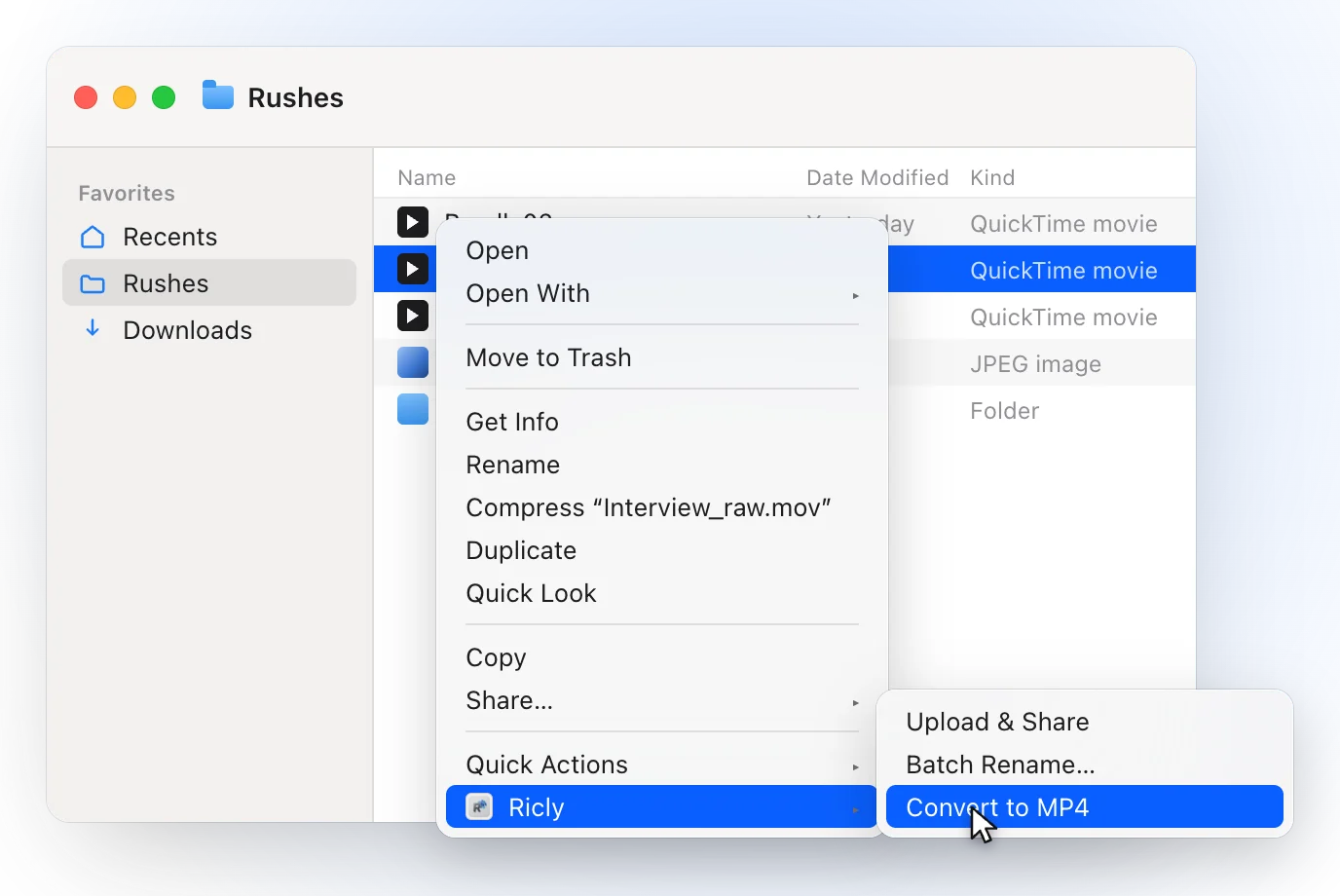
- In Finder, select the MOV or M4V files and right-click: choose Ricly › Convert to MP4.
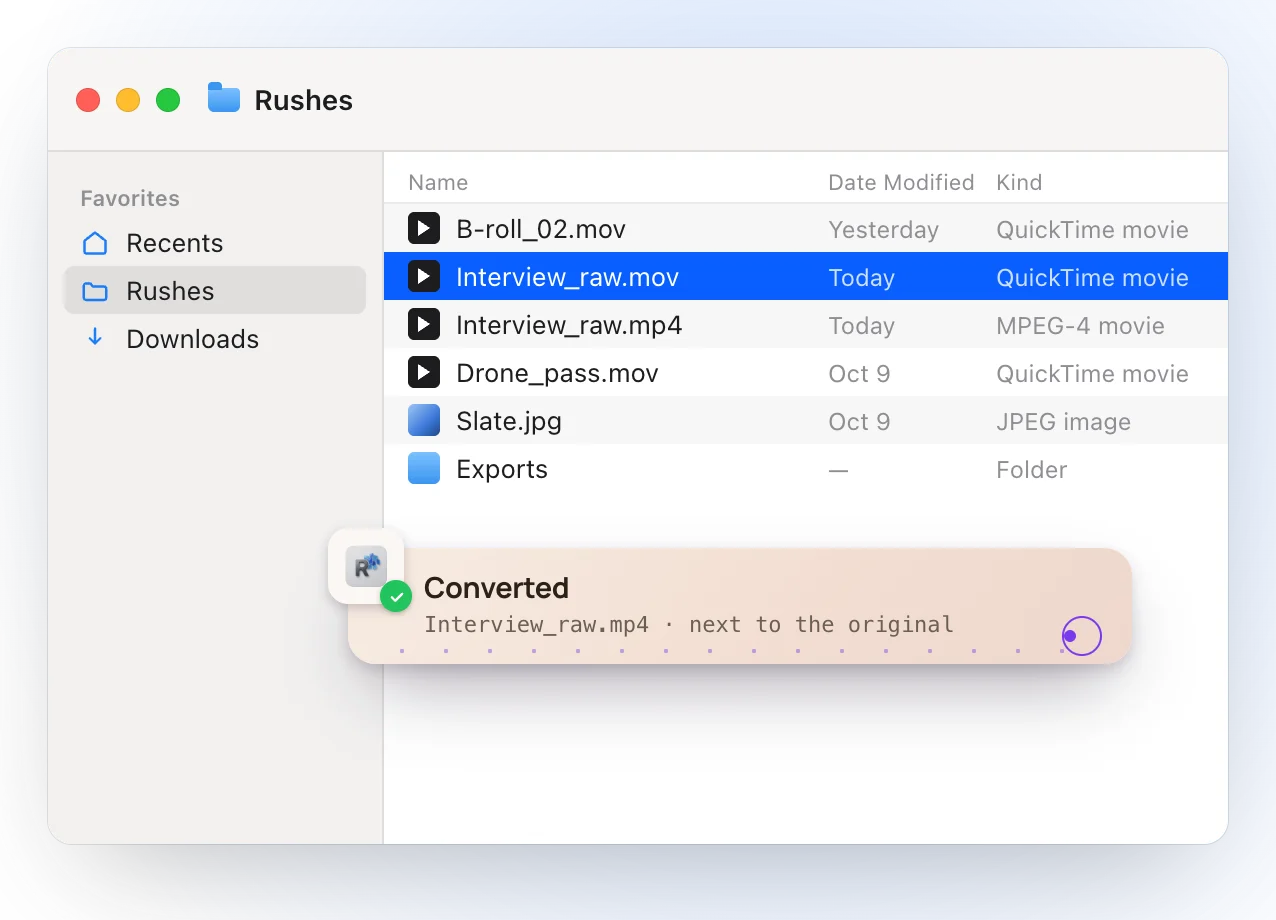
- Each MP4 lands next to its original, with the same name.
- When the video is already H.264 or HEVC and the sound is AAC, Ricly changes the container without touching the streams: no re-encode, nothing lost.
- Otherwise it encodes again only what MP4 can’t carry as is, the picture to H.264 and the sound to AAC, and copies the rest. The orientation is kept.
- The MP4 lands next to the original, with the same name, and the original is never modified. If the name is taken, you get a numbered file.
- A failed export leaves nothing behind.
- Two videos at a time, and no monthly limit.
- Everything happens on your Mac. Nothing is uploaded.
Where it falls short. It takes MOV and M4V. There’s no quality or resolution setting: to make a video smaller, export it at a lower resolution from QuickTime Player or iMovie. It needs macOS 13 or later.
Convert many MOV files to MP4 at once
In Ricly, open the folder, select the clips (⌘A selects everything in the window) and right-click once: the menu reads Convert to MP4 (20 files), and Ricly converts two at a time, each MP4 beside its original. Built in, you can rename H.264 files one by one, or loop avconvert in a script.
Which one should you use?
Converting MOV to MP4 on a Mac: common questions
Can QuickTime Player convert MOV to MP4?
Apple says QuickTime Player doesn’t export movies as MP4 videos: File › Export As gives a QuickTime movie (.mov) in H.264 or HEVC. Choose Greater Compatibility for H.264, which Apple says you can rename to .mp4.
Can I just rename a MOV file to MP4?
Apple says yes if the video is H.264: duplicate it, then change the extension. The resolution and the file size stay the same, and if the upload fails, Apple suggests iMovie. Ricly writes the streams into an MP4 file, for H.264 and HEVC alike.
How do I convert MOV to MP4 without losing quality?
Renaming an H.264 file changes nothing inside it. Ricly copies the streams when they suit MP4, so nothing is lost. iMovie and avconvert encode the video again.
How do I convert an iPhone video to MP4?
An iPhone video can be HEVC (High Efficiency). Apple’s rename method is for H.264, and for other codecs Apple points to iMovie. Ricly copies HEVC video into an MP4 without encoding it again.
How do I convert MOV to MP4 in the Terminal?
macOS includes avconvert: avconvert -s clip.mov -o clip.mp4 -p PresetHighestQuality encodes the video again into an MP4.
Is there a free MOV to MP4 converter for Mac?
Renaming and avconvert are built in, iMovie is free from Apple, and Ricly’s Video to MP4 is free with no monthly limit.
Does Ricly upload my videos?
No. The conversion runs on your Mac, and nothing is uploaded.
Video to MP4 in Ricly →Send it as a link →Compress images on a Mac →