What’s new in Ricly

Every release, newest first. Ricly updates itself in the background. To check right away, click Ricly in the menu bar, then Settings › Advanced › Check now.

Latest 1.0.7 · October 27, 2026 17 tools today Requires macOS 13 or later
1.0.7

Print sizes in Quick Resize

Quick Resize now works in centimeters and inches, so a photo comes out at the print size you need.
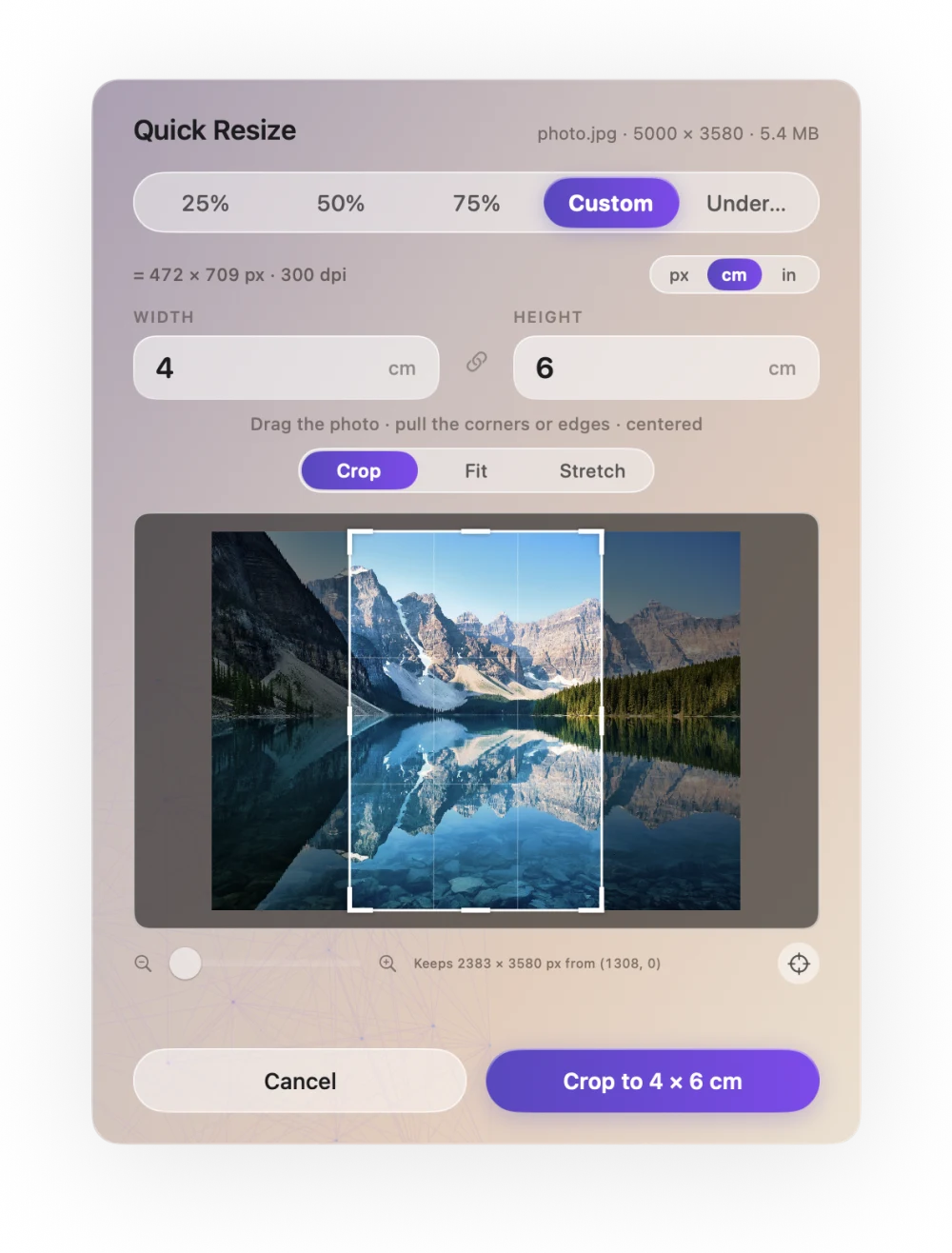
Ricly’s Quick Resize window: a photo set to 4 × 6 cm at 300 dpi, with Crop selected and the button Crop to 4 × 6 cm

✨ New

  • Quick Resize — Set the size in centimeters or inches. The copy is saved at 300 dpi.

💎 Improved

  • Quick Resize — In Crop, drag the corners and edges of the frame to choose exactly what stays.
  • Remove Background — White and Store-ready now put your subject on pure white (RGB 255).

🐞 Fixed

  • Home — The “files processed” count on the home screen now stays accurate.
  • Ricly — Security update.
1.0.6

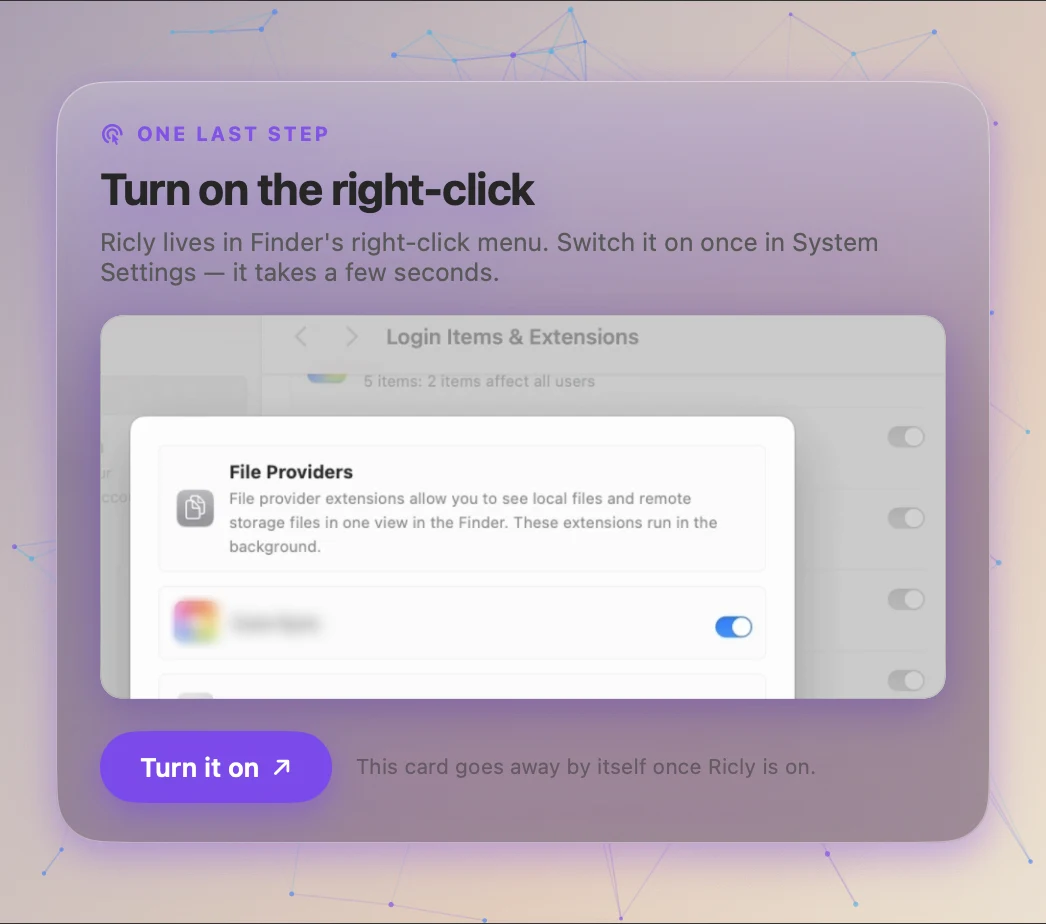
See where to turn on Ricly

If the right-click menu isn’t on yet, Ricly shows you exactly where to switch it on.

Ricly’s home screen card: One last step, Turn on the right-click, with a short video of System Settings and a Turn it on button

✨ New

  • Home — When the right-click menu isn’t on yet, the home screen shows where to switch it on, with a short video.

💎 Improved

  • Accessibility — With Reduce motion turned on, a still image replaces the video.
1.0.5

💎 Improved

  • Setup — Ricly always runs from your Applications folder, and moves itself there in one click.

🐞 Fixed

  • Ricly — Opening Ricly a second time no longer makes it quit.
  • Upload & Share — No longer shows an upgrade prompt by mistake.
1.0.3

Turning on the right-click is easier

On macOS 15 and later, Ricly shows you where the switch is, step by step.

System Settings, File Providers: the switch next to Ricly is on
Where “Show me how” takes you: Ricly’s switch in the File Providers list.

✨ New

  • Setup — On macOS 15 and later, a short “Show me how” video shows exactly where to switch Ricly on in System Settings.
  • Setup — If you open Ricly straight from the download, it offers to move itself to your Applications folder.

💎 Improved

  • Upload & Share — Works right after you create your account.

🐞 Fixed

  • Account — Pro now shows correctly after switching accounts.
1.0.2

Faster Upscale, more files supported

💎 Improved

  • Upscale Image — Much faster.
  • Audio to MP3 and Video to MP4 — Now on by default.
  • Convert to WebP — Now accepts HEIC and BMP images.

🐞 Fixed

  • Ricly — Stays signed in.
1.0.1

Smoother setup

🐞 Fixed

  • Setup — If the right-click menu doesn’t appear right away, setup now offers a fix.
  • Finder — Mounted disk images keep their own icon in the sidebar.
1.0

Ricly launches

Ricly launched with 17 tools in the Finder right-click menu: 13 free for good, and Pro for the rest.

⭐ Highlights

  • Quick Resize — Crop, fit or stretch an image to an exact size: drag the photo under the frame and zoom to choose what stays. Or use “Under…” to get it below an upload size limit.
  • Remove Background — Store-ready puts your product on a white square, with three fill levels (Tight, Amazon, Airy) and a live preview.
  • Convert to PDF — Turns one image or document into a PDF from the right-click, keeping images at full quality.
Upload & ShareAudio to MP3Compress ImageCompress PDFFind DuplicatesGenerate Icon SetHEIC to JPGImage to WebPPDF MergeQuick ResizeRemove BackgroundStrip MetadataVideo to MP4Batch RenameExtract Text (OCR)Photo GridUpscale Image

See every tool →

Get the new one the day it lands.

Ricly updates itself in the background, so a new tool simply appears in your right-click menu. Nothing to download, nothing to re-install.

Download for MacSend it to my Mac

Send the link to your Mac.

Ricly is a Mac app. Drop your email and we send you the download link.

We email you the download link, then one short check-in the next day. One click to unsubscribe. We delete your address after that. · Free · macOS 13 or later · 299 MB

Or copy the download link ·