
An image resizer for Mac, built into the right-click menu.
A photo is 6000 px wide and the form accepts 1200. Right-click it, type the number, and a resized copy lands beside the original. If the form counts in megabytes instead, pick Under 2 MB and Ricly finds the largest size that fits.
Free account, no card · 299 MB · Apple silicon & Intel
 Ricly▸Quick ResizeHeadphones.jpgDone!Headphones.jpg
How to resize an image with Ricly
- Install Ricly and open it.Turn on the Finder extension when it asks (one setting), then create your free account and verify your email.
- In Finder, right-click the picture.Select several to resize them all with the same setting.
- Choose Ricly › Quick Resize…, then pick the size.A percentage, a width or height in pixels, or a file size to stay under: the copy lands next to the original.
Resize an image without opening an editor
You have done this a hundred times.
- Open a browser
- Find a resizer
- Upload the picture
- Type the size
- Download it
- Move it back
- Close the tab
Ricly puts that one in the menu that is already under your cursor. Right-click the picture, pick Quick Resize, set the size, the copy lands beside it. 25, 50 or 75 %, a width or a height in pixels, or a weight to stay under — the EXIF kept, the original untouched.
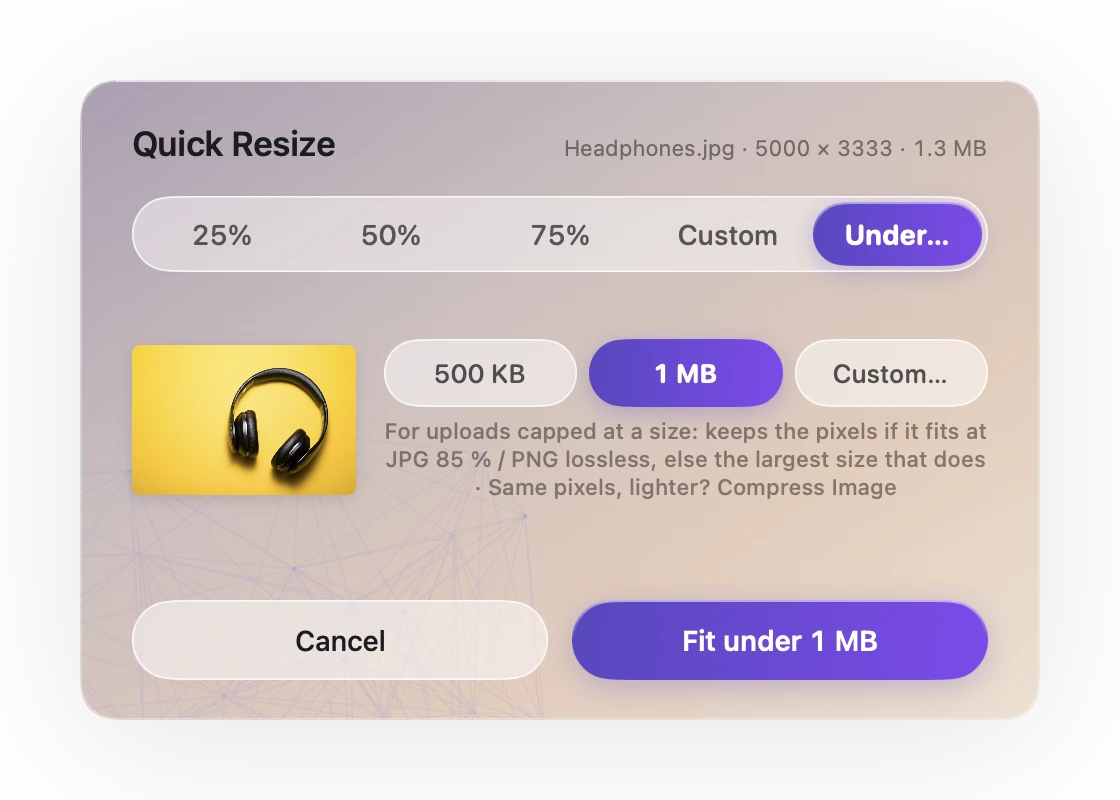
See what else comes with itMax 2 MB? Right-click › Quick Resize › Under… 2 MB. Real panel, real run: our 8.2 MB test photo came out at 2.0 MB in 1.3 s.
Resize by percentage, by pixels or by file size
One resized copy per file, at the size you asked for. A PNG stays a PNG, lossless. Everything else comes out as JPEG at quality 0.92, or 0.85 when it has to fit under a weight — high enough that the resize is what you see, not the compression.
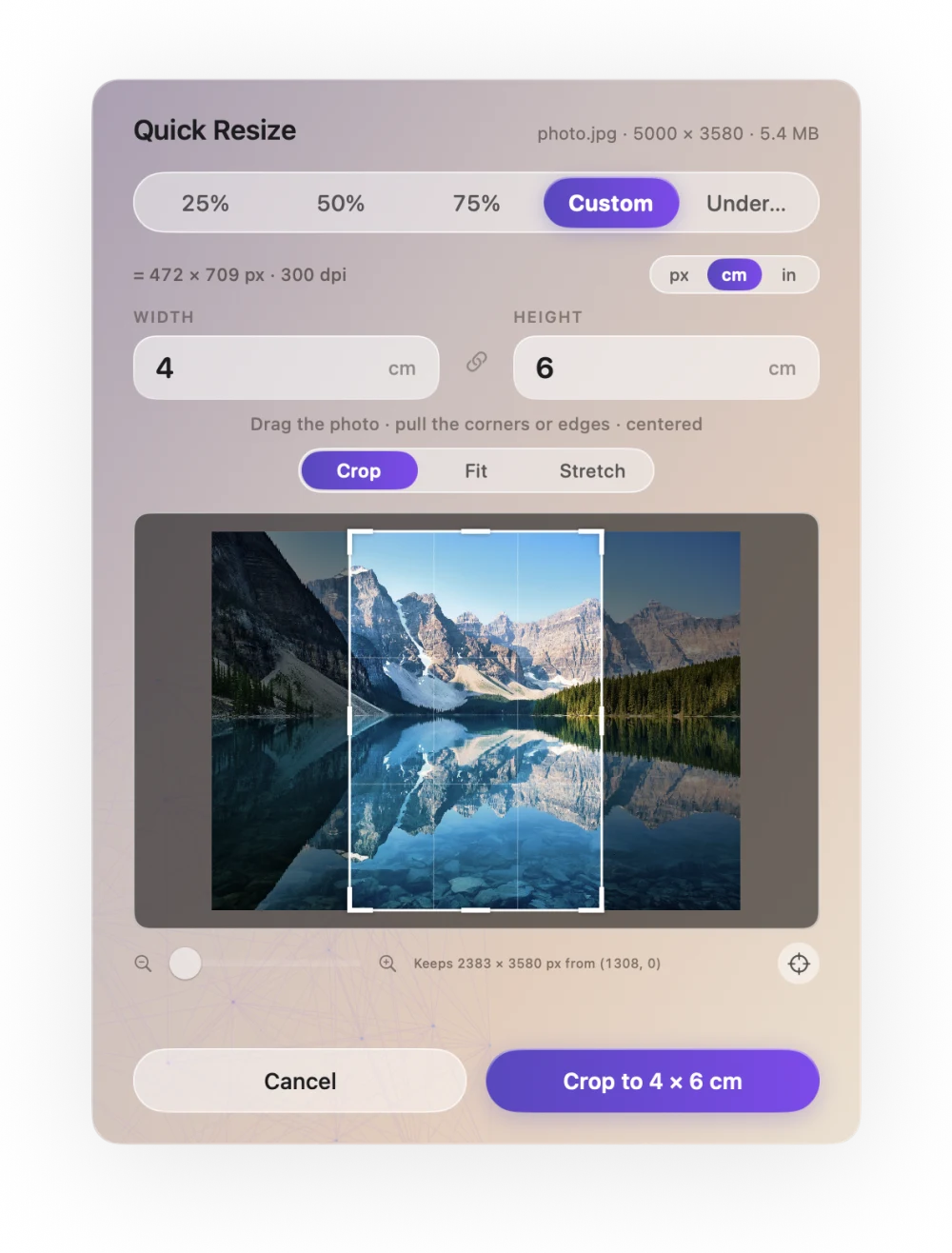
A percentage, or one side
25, 50 or 75 % of each picture, or a width or a height in pixels, and the other side follows the ratio. Nothing is cropped, and nothing is distorted unless you ask for it.
Under a weight, not just a size
For uploads capped at a size — job portals, marketplaces, forms that refuse anything over 2 MB. Pick Under… and a limit below the picture’s weight, from 500 KB to 10 MB, or type your own. Ricly keeps the size in pixels if the file already fits at JPEG quality 0.85 (a PNG stays lossless); otherwise it picks the largest size that does. Never enlarged, never below JPEG 0.85.
Any frame: crop, fit or stretch
Unlink width and height and the panel opens up on the picture. Pick Crop — it fills the frame, framed on the subject when Ricly finds one — Fit, the whole picture with white margins (transparent in a PNG), or Stretch. In Crop, drag the photo under the frame and zoom in up to 4× to choose exactly what you keep, down to the pixel. Ricly never blows a crop up: the file is saved at the pixels you kept. It remembers your choice.
Bigger works, and it tells you
Type a size larger than the source and the copy is scaled up — the panel warns that it will look softer before you confirm. Enlarging with real detail is a different job, and it has its own tool: Upscale Image, with a model behind it.
The EXIF data comes with it
Camera, lens, date and orientation are preserved. If you want them gone, that is Strip Metadata, one item below in the same menu — and it is a decision you take, not a side effect.
The original is never touched
The resized copy carries a suffix and lands in the same folder. Your source is not modified, moved or deleted, and nothing is overwritten if the name is taken.
Ricly vs. Preview, Photoshop and online resizers
Resizing is the job people open a whole editor for, or hand to a website with a picture that should not be there. Counted the same way, once your account exists, here is what that costs.
With Riclyon your Mac
WHAT IT REPLACES
A whole selectionone size,
one copy each
A folder of photos is one right-click, and one size. The menu reads Quick Resize (20 files); you set the size once — a percentage, a width, or Under 2 MB — and every copy follows it, each one named after its own new dimensions, every original left as it was.
macOS has its own, in Preview. Tools › Adjust Size, then a width and a height, and Apple shows how to resize several images at once from the sidebar. Apple also notes that changes to a Preview document are saved automatically, so keep a copy if you want the original. Preview shows the resulting file size once you have entered the dimensions, so for a form that says 2 MB you try a size and check. Ricly starts from the result — Under 2 MB, or a frame to fill, cropped on the subject when Ricly finds one — and writes a copy beside the original, which it never touches.

Need it under 2 MB?
Right Click. Done. For the form, the listing, the email that bounces — one limit, one copy, the original untouched.
You came for one tool. 16 more come with it.
Quick Resize is not an app you install. It is one item in a menu that also carries 16 others — same download, same account, nothing extra to set up.
13 are free, 4 are Pro. They install themselves as they ship, so the menu grows without you doing anything. Compress Image brings the weight down without touching the pixel count, and Upscale Image is the tool for the other direction.
A free image resizer, with no monthly limit
No monthly count on this tool. Resize a whole shoot if you want to.
- This tool has no monthly count. Resize a whole shoot if you want to.
- Select twenty photos, set the size once, twenty copies.
- The same resizer and the same EXIF handling as any paid plan.
- A free account is required, with a verified email address.
€47.88 billed yearly, or €4.99 month to month.
- Pro adds nothing to this tool. It is already unlimited.
- The four Pro tools unlock: Extract Text, Upscale Image, Photo Grid, Batch Rename.
- Upload & Share goes to 20 GB and links last 30 days.
- 30-day trial for new subscribers · payment method required · cancel any time.
Resizing images on a Mac: common questions
How do I resize an image on a Mac without installing anything?
In Preview, choose Tools › Adjust Size, then enter a width and a height or choose a size from Fit into; select Scale proportionally to keep the shape. Preview saves changes automatically, so duplicate the picture first if you want to keep the original.
How do I batch resize images on a Mac?
With Ricly, select the pictures, right-click once and set the size once: every copy follows it. Built in, Preview resizes several at once if you open them in one window and select them in the sidebar, and Automator’s Scale Images action resizes by the longer side in pixels or by a percentage.
Can I resize an image in the Terminal?
Yes, macOS includes sips. To fit a picture in 1200 pixels on its longer side, run sips -Z 1200 photo.jpg --out photo-1200.jpg in the Terminal.
How do I set the size?
Pick 25, 50 or 75 %, choose Custom and type a width or a height in pixels, or choose Under… and a weight. The other side follows the ratio unless you unlink the two. Ricly remembers the mode you used last, and any limit you type.
Can I get a picture under 2 MB?
Yes. Choose Under… and a limit: the panel offers the ones below the picture’s current weight, from 500 KB to 10 MB, or Custom… to type your own, like 3 MB or 300 KB. Ricly keeps the size if it fits at JPEG quality 0.85, otherwise the largest size that does, and writes it once. If a picture cannot get under the limit without shrinking to almost nothing, it says so and points you to Compress Image.
Under…, or Compress Image?
Need it under a size? Quick Resize, Under…: for a site that refuses anything heavier, it changes the dimensions only if it has to. Same dimensions, lighter file, no size target? Compress Image, in the same menu.
Can I set the width and the height freely?
Yes. Unlink the two fields and type both; the panel opens up on the picture. Pick Crop (the default, framed on the subject when Ricly finds one), Fit (the whole picture, with margins) or Stretch, and in Crop drag and zoom to choose exactly what is kept. Link them again to keep the proportions.
Can’t Preview do this already?
Preview resizes, yes: Tools, Adjust Size. It shows the resulting file size once you have picked the dimensions, so for a weight limit you guess, check and guess again. Ricly starts from the limit and hands you the file. Apple gives you the settings; Ricly gives you the result.
Does it enlarge a small picture?
If you ask for a larger size, yes, and the panel warns you first that it will look softer: scaling up adds pixels, not detail. For a sharp enlargement, that is Upscale Image, in the same menu. A crop, though, is never enlarged: it is saved at the pixels you kept.
Which files can I use, and what comes out?
JPG, JPEG, PNG, HEIC, WebP, TIFF and BMP go in. A PNG comes out as a PNG, lossless; everything else comes out as a JPEG at quality 0.92, or 0.85 when you resize under a weight.
Does it keep the photo’s information?
Yes. Camera, lens, date and orientation are carried into the copy. If you want them gone, that is Strip Metadata, in the same menu.
Where does the new file go?
Beside the original, with the new dimensions in the name — Portrait [1200x1500].jpg. Your original is not modified, moved or deleted.
Can I resize a whole folder at once?
Select the files and right-click: the menu reads Quick Resize (20 files). You set the size once — a percentage or a width — and it applies to every picture.
Right Click. Done.
17 file tools in the Finder menu. Free to start.
Free account, no card · macOS 13 or later

Send the link to your Mac.
Ricly is a Mac app. Drop your email and we send you the download link.
We email you the download link, then one short check-in the next day. One click to unsubscribe. We delete your address after that. · Free · macOS 13 or later · 299 MB
Share the link to your Mac.
Sent! Check your inbox on your Mac.
Open the email there and Ricly installs in about two minutes.
Or just type usericly.com/mac on your Mac.
Want the founder deal?
€69 instead of €99
Ricly Pro for life · pay once
Every tool, including the 4 Pro ones
Only for the first 200 members
You're in. Your deal is on its way to your inbox.
One email with the deal, one reminder before it ends. We'll also email you big Ricly news, rarely. Unsubscribe anytime.
Get Ricly on your Mac
Ricly is a Mac app. We'll email you the download link, so you can install it when you're at your Mac.
We email you the download link, then one short check-in the next day. One click to unsubscribe. We delete your address after that.
Share the link to your Mac.
Ricly is a Mac app.
Send the download link to your Mac.
We email you the download link, then one short check-in the next day. One click to unsubscribe. We delete your address after that.
Share the link to your Mac.