
Short answer
For photos in your Photos library, select them and choose Image › Location › Hide Location. To check whether a photo carries a location, open it in Preview and choose Tools › Show Location Info: Apple says it appears in gray when there’s none. To remove the location and the rest (the date, the camera, the software) from any photo file, Ricly writes a clean copy from the right-click menu.
Need a clean copy of any photo, not just the location hidden? See how Ricly does it ↓
What a photo carries
A photo from a phone or a camera can carry metadata alongside the picture: the place (GPS coordinates), the date and time, the make and model of the device, and the software. Some also carry copyright, caption or keyword fields (IPTC and XMP). Our test photo, a public-domain shot of the Golden Gate Bridge from Wikimedia Commons, carries its GPS coordinates, the date it was taken and “iPhone 13 mini”.
Check a photo’s location in Preview (built in)
- Open the photo in Preview.
- Choose Tools › Show Location Info, then scroll to the bottom of the GPS section.
- Click Show in Maps for a street map of the place.
Apple says that if Show Location Info appears in gray, the image doesn’t contain location information.
Steps from Apple’s Preview guide: See where a photo was taken.
Hide the location in Photos (built in)
- In Photos, select the photos.
- Choose Image › Location › Hide Location.
To bring it back, choose Image › Location › Revert to Original Location.
Good to know. It works on photos in your Photos library, and on the location only. Apple’s page doesn’t say whether the location stays in the original file or leaves with exported copies.
Steps from Apple: Manage location metadata in Photos.
 The right-click way
Remove photo metadata with Ricly
- Install Ricly and open it. Turn on the Finder extension when it asks (one setting), then create your free account and verify your email. In Ricly › Modules, click Enable on Strip Metadata (it’s off at first).
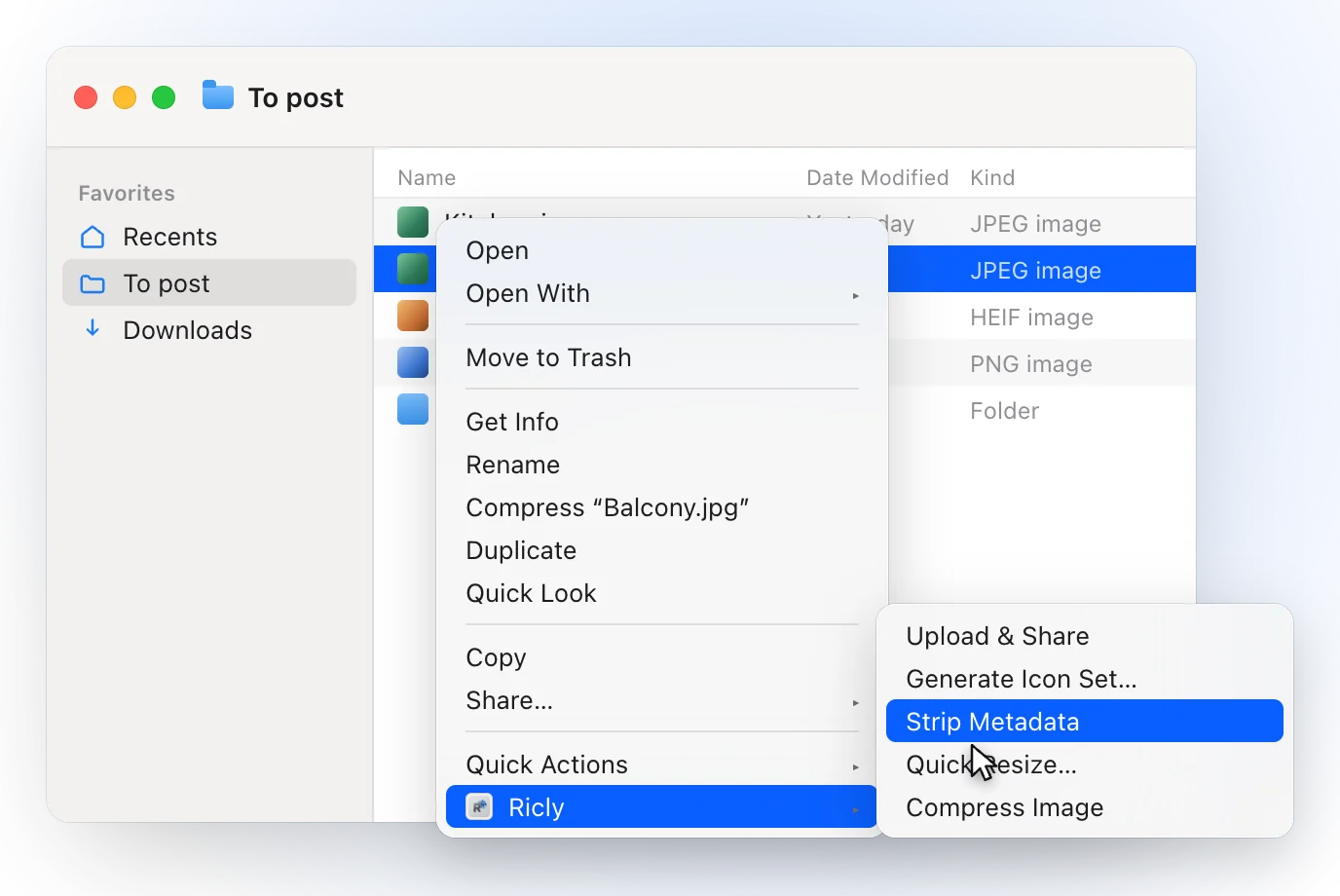
- In Finder, select the photos and right-click: choose Ricly › Strip Metadata.
- A copy named -clean lands next to each original, which stays untouched.
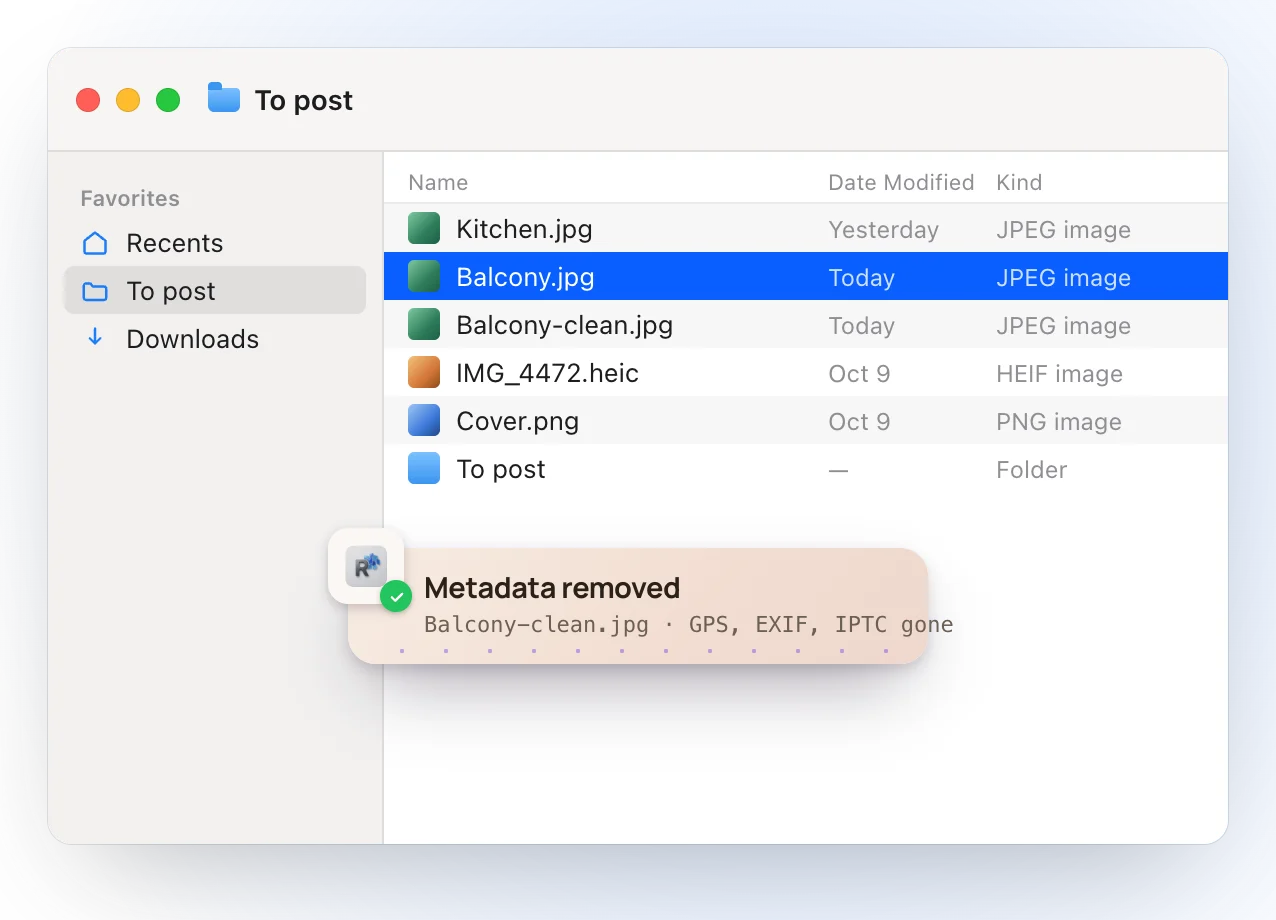
- It removes the location, the date and time, the camera make and model, the software, the copyright fields, the XMP block, and the maker notes of Apple, Canon, Nikon, Fuji, Olympus, Pentax and Minolta.
- It reads the clean copy back: if anything would still reveal a place, a device, a person or a date, the copy isn’t delivered.
- The color profile and the orientation are kept, so the photo looks the same and stays the right way up.
- A JPEG, a PNG or a HEIC is copied with the same pixels, bit for bit, and a TIFF is rewritten without loss. Only if that copy fails does Ricly rewrite a JPEG or a HEIC, at maximum quality.
- Run it twice and you get photo-clean 2.jpg: nothing is overwritten, and your original is never modified.
- Four photos at a time, and no monthly limit. Everything happens on your Mac; nothing is uploaded.
Where it falls short. It works on photo files: JPG, JPEG, PNG, HEIC, HEIF and TIFF. It doesn’t remove anything visible in the picture, like a watermark or a street sign. It needs macOS 13 or later.
Remove metadata from many photos at once
In Ricly, select the photos (⌘A selects everything in the window) and right-click once: each one gets its own -clean copy, four at a time, with the originals left as they were. In Photos, Hide Location applies to all the photos you select.
Which one should you use?
Removing photo metadata on a Mac: common questions
How do I remove the location from a photo on a Mac?
For photos in your library, open Photos, select them, then choose Image › Location › Hide Location. For any photo file, right-click it with Ricly and choose Strip Metadata: the clean copy carries no location, date or camera.
How do I see a photo’s metadata on a Mac?
Open it in Preview and choose Tools › Show Location Info to see where it was taken; Apple says the command appears in gray when there’s no location.
Does Ricly remove all EXIF data?
It removes EXIF, GPS, IPTC, XMP, the TIFF block and the manufacturer maker notes, then checks the clean copy. It keeps the color profile and the orientation, so the photo looks the same and stays the right way up.
Does the photo still look the same?
Yes. The color profile is kept, and in the normal case the picture is copied without re-encoding. The orientation is kept too.
Can I remove metadata from many photos at once?
With Ricly, select them and right-click once: each gets its own clean copy. In Photos, Hide Location works on every photo you select.
Is there a free metadata remover for Mac?
Photos’ Hide Location is built in, and Ricly’s Strip Metadata is free with no monthly limit.
Is the photo uploaded to check it?
No. The cleaning and the check run on your Mac.
Strip Metadata in Ricly →Send large files from a Mac →Convert HEIC to JPG on a Mac →