
Short answer
The built-in way with the fewest steps is the Finder: select the files in the order you want them, Control-click, then choose Quick Actions › Create PDF. Apple says the files appear in the PDF in the order you select them. To move individual pages from one PDF to another, use Preview’s thumbnails.
Rather pick the order on thumbnails first, from the right-click menu? See how Ricly does it ↓
Three ways at a glance
| Method | Where | How you set the order | What you get | Price |
|---|---|---|---|---|
| Finder | Right-click › Quick Actions › Create PDF | Select the files in that order | A new PDF named like the first file | Built in |
| Preview | Open the PDFs, View › Thumbnails | Drag thumbnails between the sidebars | The open PDF, changed and saved automatically | Built in |
 Ricly Ricly | Right-click › Ricly › Merge to PDF… | Drag thumbnails in a picker, before anything is made | A new PDF beside the first file, one bookmark per file | Free, 5 merges a month |
Merge PDFs in the Finder with Create PDF (built in)
- In the Finder, select the files you want to combine, in the order you want them to appear.
- Control-click the selection, then choose Quick Actions › Create PDF.
- The new PDF appears with a name similar to the first file you selected.
What it does. Apple says the files appear in the PDF in the order you select them, and the PDF is named after the first one. You can also use the Create PDF button at the bottom of the Finder’s Preview pane (View › Show Preview).
Good to know. The order comes from your selection, so to merge ten files in a precise order, select them one at a time, in that order. Apple’s page doesn’t list which file types it combines.
Merge PDFs in Preview (built in)
- Open the PDFs you want to combine in Preview. To keep the originals, choose File › Duplicate first: Preview saves changes automatically.
- In each one, choose View › Thumbnails.
- Drag the thumbnails you want from one PDF’s sidebar into the other’s — at the end, or between two pages. Command-click to pick pages that aren’t next to each other.
- Drag thumbnails to put the pages in order.
What it does. Preview moves pages from one document into another, and lets you reorder them one by one. To add a whole PDF, drag its icon from the Finder onto the sidebar of the open document.
Good to know. The document you drop pages into is the one that changes, so duplicate it first if you want to keep it as it was.
The right-click way
Merge PDFs with Ricly
- Install Ricly and open it. Turn on the Finder extension when it asks (one setting), then create your free account and verify your email. In Ricly › Modules, click Enable on PDF Merge (it’s off at first).
- In Finder, select the files and right-click: choose Ricly › Merge to PDF….
- Drag the thumbnails into order, then click Merge. The PDF lands next to the first file.
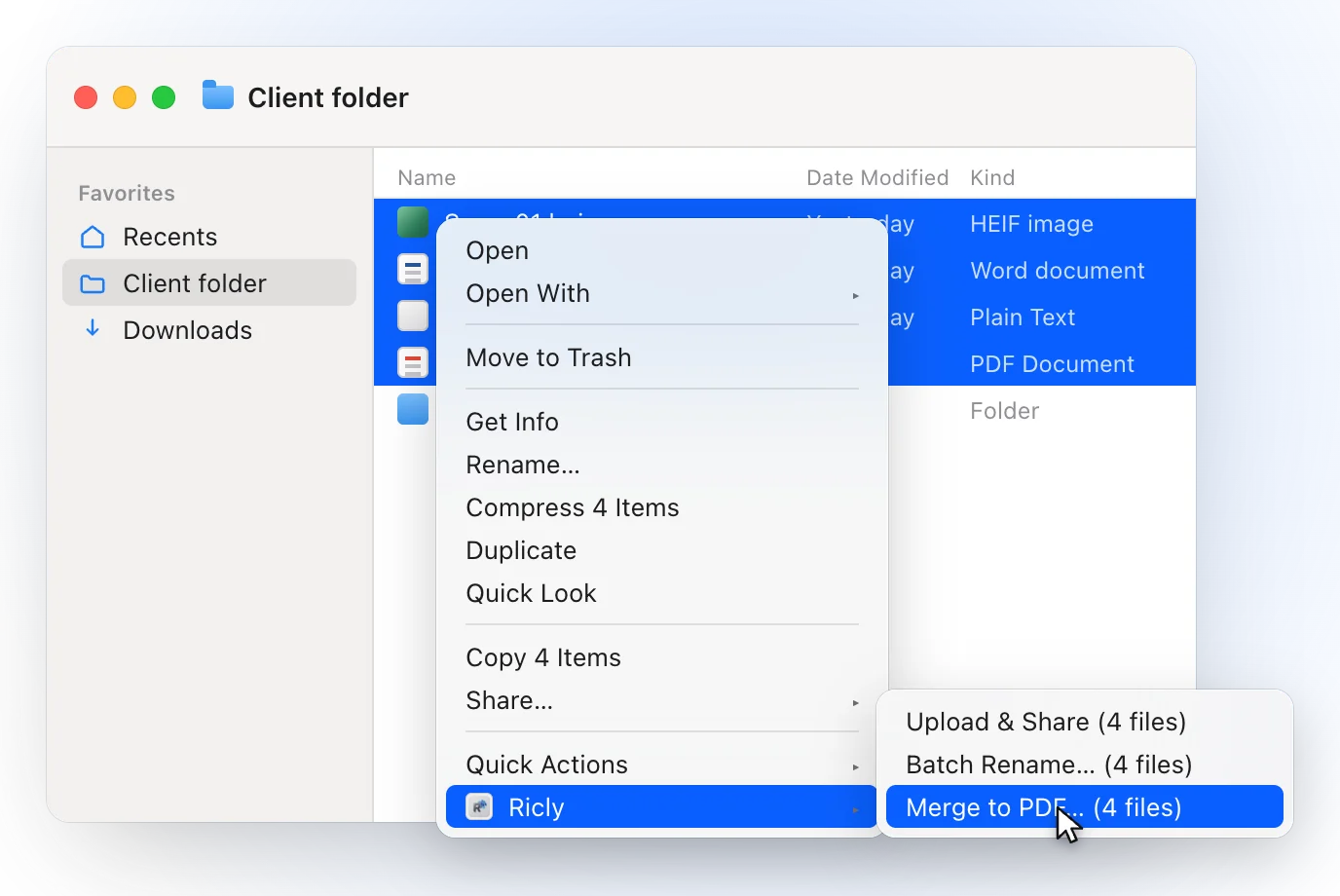
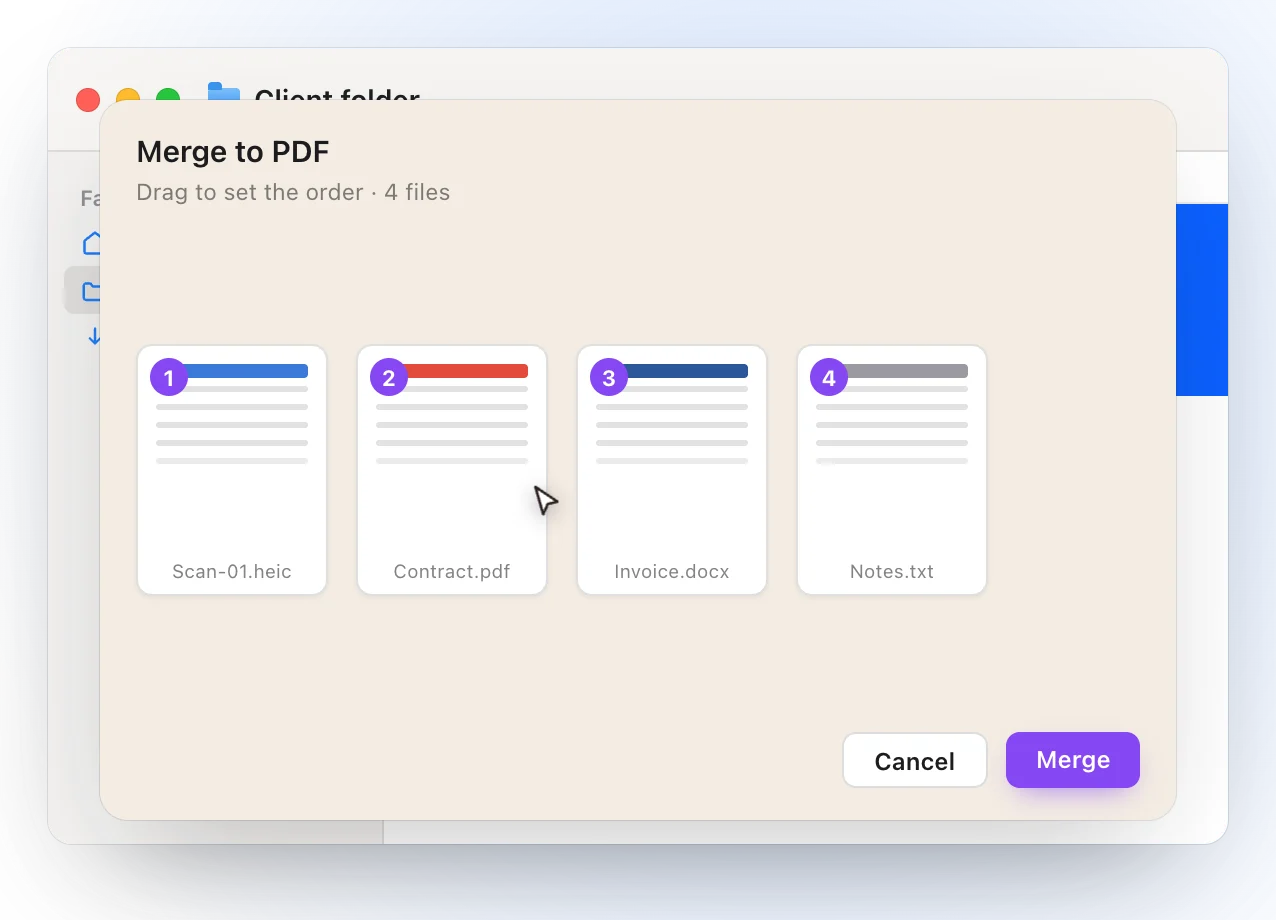
- You see every file as a thumbnail and drag it into place before anything is made. The picker starts in natural name order, so page2 comes before page10.
- PDFs, images, Word, ODT, RTF, text, HTML and Markdown files can go in the same merge.
- Each file gets a bookmark in the merged PDF, so it has a table of contents in Preview.
- The result is named merged-4-pdfs-2026-10-11.pdf, next to the first file in your order, and it never replaces a file that already carries the name.
- A password-protected PDF is named before you start, so you don’t arrange pages for nothing.
- Everything happens on your Mac. Nothing is uploaded.
Where it falls short. The free plan covers 5 merges a month (turning a single image or document into a PDF is free and unlimited). A password-protected PDF has to be unlocked first. It needs macOS 13 or later.
Merge many PDFs at once
With twenty files, the order is the hard part. In the Finder, Create PDF follows the order you select them, one by one. In Preview, you can drag several PDF icons from the Finder onto the open document’s sidebar, then reorder the thumbnails. In Ricly, select them all (⌘A selects everything in the window) and right-click once: the picker opens with all twenty in natural name order, and you drag only the ones that are out of place. It is still one merge on your monthly count.
Which one should you use?
Merging PDFs on a Mac: common questions
How do I merge two PDFs on a Mac?
Select both in the Finder, first the one you want at the start, Control-click, then choose Quick Actions › Create PDF. In Preview, you can also drag the second PDF’s icon from the Finder onto the first one’s sidebar.
How do I combine PDFs in the order I want?
In the Finder, select them in that order: Apple says Create PDF follows the order you select them. In Preview, drag the thumbnails. In Ricly, drag the thumbnails in the picker before you click Merge.
Can I merge PDFs on a Mac for free?
Yes. Create PDF in the Finder and Preview are built in. Ricly’s free plan covers 5 merges a month.
Can I merge PDFs with the Terminal or automate it?
macOS includes an Automator action, Combine PDF Pages, that you can use in a workflow of your own. Ricly is for when you would rather right-click.
Can I merge Word documents and images into one PDF?
Ricly can: Word, ODT, RTF, text, HTML, Markdown and images go into the same merge as your PDFs. Images go in without further loss, so the PDF can weigh more than the pictures; Compress PDF lightens it afterwards.
What about a password-protected PDF?
Remove the password first, then merge. Ricly names the protected file before you start.
Does Ricly upload my PDFs?
No. The merge runs on your Mac, and nothing is uploaded.
PDF Merge in Ricly →Compress a PDF on a Mac →Send it as a link →