
Short answer
Open the image in Preview, drag across the text, Control-click your selection and choose Copy Text: that’s Live Text. Photos does the same on your photos. For a PDF that already has text, choose Tools › Text Selection in Preview and copy. A scan has no text to select until something recognizes it, which Ricly does from the right-click menu.
Need the text of a whole folder, or a scan you can search? See how Ricly does it ↓
Four ways at a glance
| Method | Where | Works on | Many at once | Price |
|---|---|---|---|---|
| Preview | Live Text on images; Tools › Text Selection on PDFs | Images, and PDFs that have text | Not described by Apple | Built in |
| Photos | Control-click › Copy Text | Photos in your library | Not described by Apple | Built in |
| Shortcuts | A shortcut with Extract Text from Image | Whatever you pass to it | With the shortcut | Built in |
 Ricly Ricly | Right-click › Ricly › Extract Text | JPG, PNG, HEIC, TIFF and PDF, scans included | A .txt beside each file | Pro |
Copy text from an image with Live Text in Preview (built in)
- Open the image in Preview.
- Drag to select the text, Control-click your selection, then choose Copy Text.
- Paste it where you need it.
If you can’t select the text, choose Tools › Text Selection. Apple notes that Live Text isn’t available in all regions or languages.
Steps from Apple’s Preview guide: Interact with text in a photo using Live Text.
Copy text from a photo in Photos (built in)
Open the photo, Control-click the text and choose Copy Text, or press ⌘C. Share Text, in the same menu, sends it to another app.
Steps from Apple: Use Live Text to interact with text in a photo on Mac.
Copy text from a PDF in Preview (built in)
- Open the PDF in Preview and choose Tools › Text Selection.
- Drag over the text, then choose Edit › Copy. Hold Option while you drag to select a column.
Apple lists two reasons you might not be able to select text: the Text Selection tool isn’t on, or the PDF is password-protected. A scan is a third case: it’s a picture of the page. Our test scan, a one-page PDF made from an image, carried no text at all, so there was nothing to select.
Steps from Apple’s Preview guide: Select and copy text in a PDF.
Extract text with Shortcuts (built in)
Shortcuts on macOS 15.7 includes an Extract Text from Image action, which you can build into a shortcut. Apple also describes running a shortcut from the Terminal, with files as input:
shortcuts run "Shortcut name" -i image.png
Source: Apple’s Shortcuts guide, Run shortcuts from the command line.
The right-click way
Extract text with Ricly
- Install Ricly and open it. Turn on the Finder extension when it asks (one setting), create your free account, then switch to Pro and, in Ricly › Modules, click Enable on Extract Text (OCR).
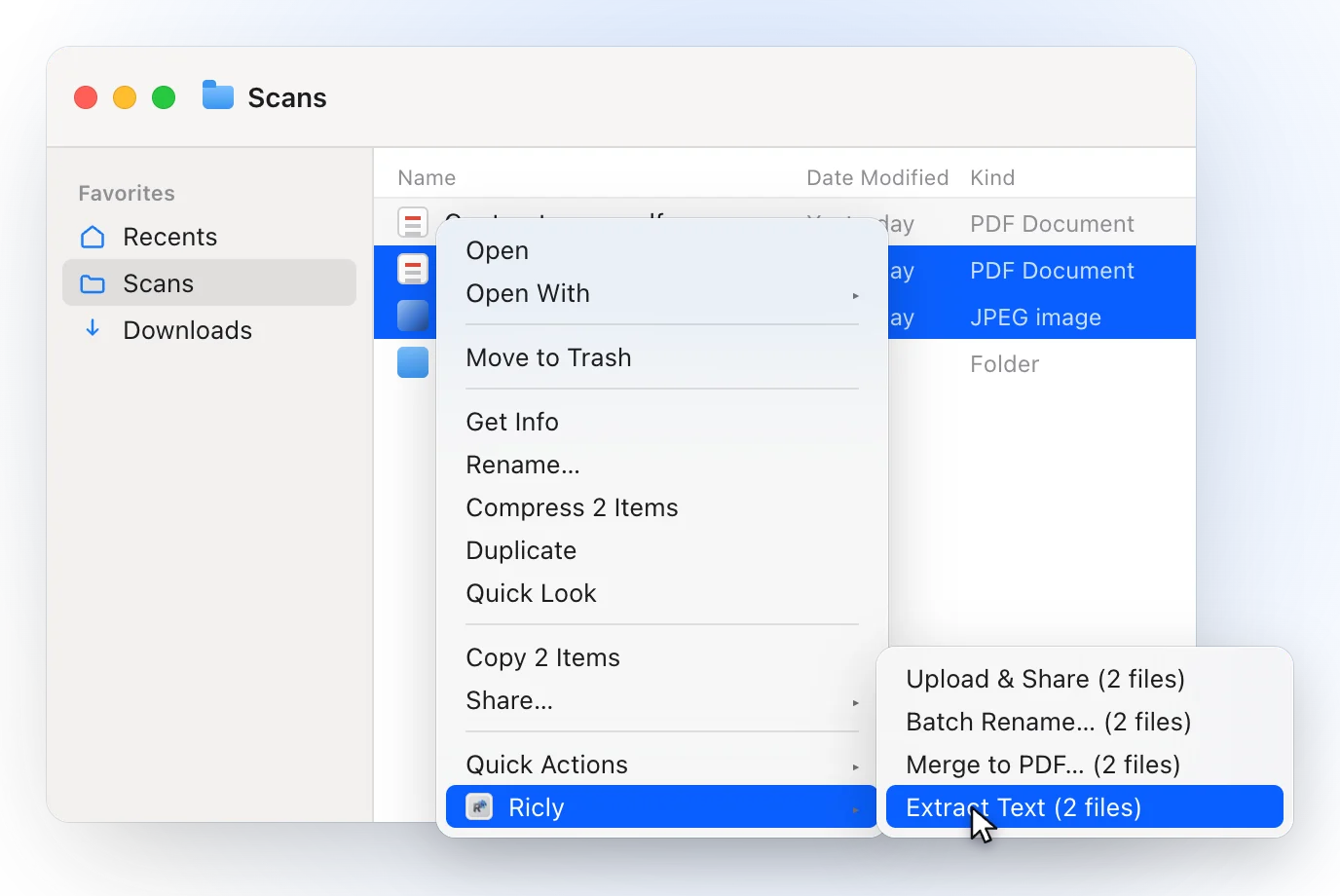
- In Finder, right-click the image or the PDF, or select several, and choose Ricly › Extract Text.
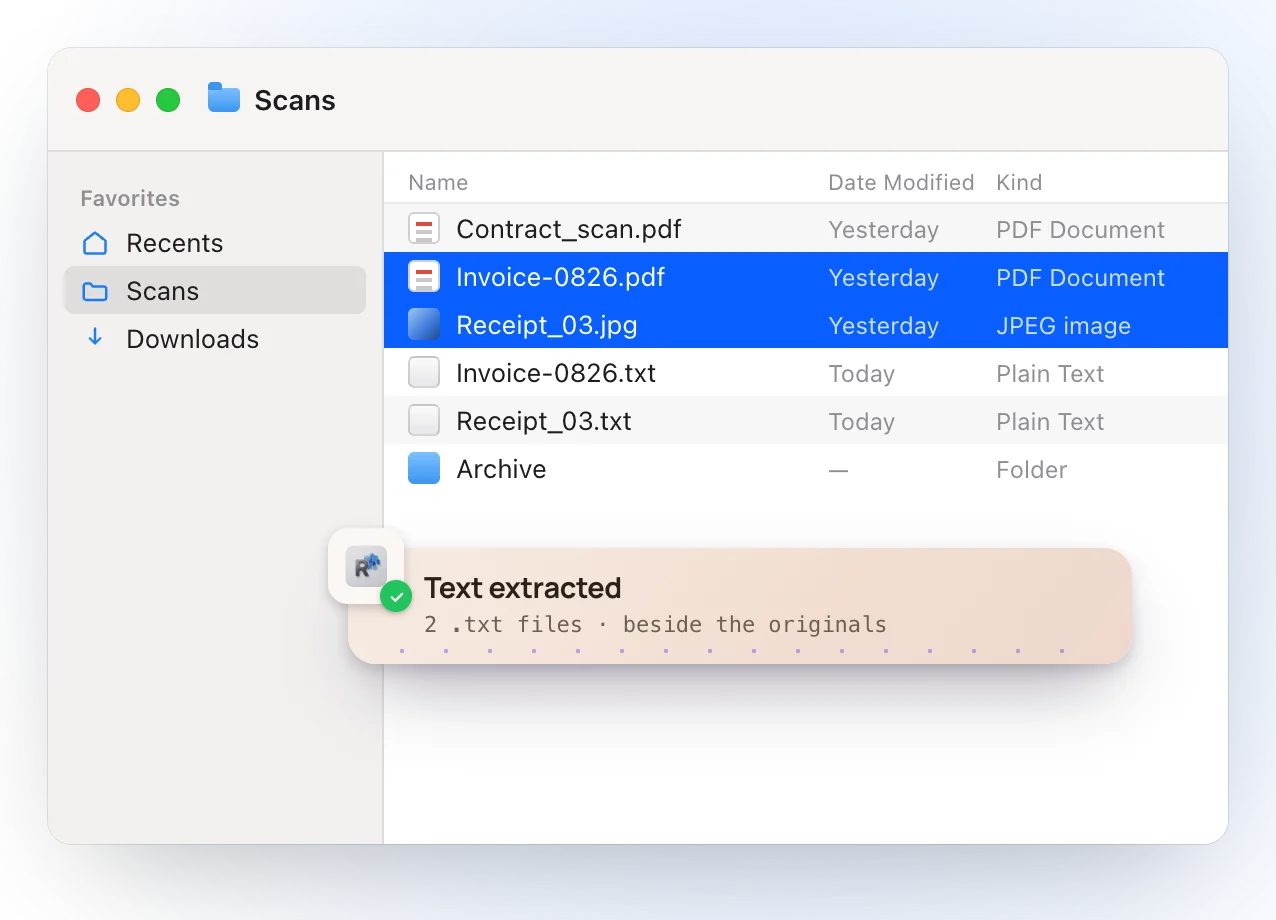
- One file: the text opens in a panel, already copied. Several: a .txt lands beside each one.
- Apple’s Vision recognition, in its accurate mode with language correction, reads in English and French first, then every other language it supports on your Mac.
- On a PDF, a page that already has text is read as it is; only scanned pages go through recognition.
- One file: save the text from the panel as .txt or .md. Several: one .txt per file, named after it.
- A picture with no readable text is reported instead of becoming an empty file.
- A scanned PDF can become a searchable one (see below).
- Everything happens on your Mac. Nothing is uploaded.
Where it falls short. It’s a Pro tool. A password-protected PDF isn’t processed: remove the password first. It needs macOS 13 or later.
Make a scanned PDF searchable
In Ricly’s panel, Searchable PDF writes <name>-searchable.pdf beside the scan. It looks the same, with an invisible layer of text on top, read in the same languages, so Preview, Spotlight and Mail can find and select its words. Pages that already have text are left as they are, and the original isn’t modified. Apple’s Preview guide doesn’t describe a way to do this.
Which one should you use?
Extracting text from images on a Mac: common questions
How do I copy text from an image on a Mac?
Open it in Preview, drag to select the text, Control-click and choose Copy Text. In Photos, Control-click the text and choose Copy Text.
Why can’t I select text in a PDF?
Apple lists two reasons: the Text Selection tool isn’t on (Tools › Text Selection), or the PDF is password-protected. If it’s a scan, the page is a picture with no text to select until something recognizes it.
Can Shortcuts extract text from an image?
Yes. Shortcuts on macOS 15.7 includes an Extract Text from Image action, and Apple describes running shortcuts from the Terminal with files as input.
How do I make a scanned PDF searchable on a Mac?
Ricly’s Searchable PDF adds an invisible text layer, so Preview, Spotlight and Mail can find its words. Apple’s Preview guide doesn’t describe a way to do it.
Which languages can it read?
Live Text isn’t available in all regions or languages, Apple notes. Ricly reads English and French first, then every other language Apple’s Vision supports on your Mac.
Can I extract text from many images at once?
With Ricly, select them and right-click once: each gets a .txt beside it.
Is my document uploaded anywhere?
Not with Ricly: the recognition runs on your Mac.
Extract Text in Ricly →Compress a PDF on a Mac →Merge PDFs on a Mac →