
Short answer
On macOS 15.7, the system’s image engine has no WebP encoder, and Preview’s export formats don’t include it. In the Terminal, Google’s cwebp does it once installed: cwebp -q 85 photo.jpg -o photo.webp. Ricly makes the WebP from the right-click menu. Going the other way, Preview and sips turn a WebP into a JPG or a PNG.
Rather right-click a folder of PNGs and get the WebPs beside them? See how Ricly does it ↓
Can a Mac save images as WebP?
It opens them, but it doesn’t write them. On macOS 15.7, the system’s image engine lists 21 formats it can write, and WebP isn’t one of them, so sips -s format webp writes nothing. Apple lists Preview’s export formats as HEIC, JPEG, JPEG-2000, OpenEXR, PDF, PNG and TIFF. To make a WebP, you need an encoder: Google’s cwebp in the Terminal, or Ricly, which ships that same encoder inside the app.
Convert to WebP in the Terminal, with cwebp
- Install Google’s WebP tools, for example with Homebrew:
brew install webp. - In the folder, run the command below. The quality goes from 0 to 100; cwebp’s default is 75.
- For a whole folder of PNGs, use the loop below it.
cwebp -q 85 photo.jpg -o photo.webp
for f in *.png; do cwebp -q 85 "$f" -o "$(basename "$f" .png).webp"; done
Good to know. Add -lossless for an exact copy of a PNG: on a flat logo it can even be smaller, as our transparent logo came out at 7.2 KB lossless against 11.5 KB at quality 85. cwebp doesn’t read HEIC (we tried), so convert an iPhone photo to JPG first.
 The right-click way
Convert to WebP with Ricly
- Install Ricly and open it. Turn on the Finder extension when it asks (one setting), then create your free account and verify your email.
- In Finder, select the JPGs, PNGs, HEICs or TIFFs and right-click: choose Ricly › Convert to WebP.
- Each WebP lands next to its original, with the same name.
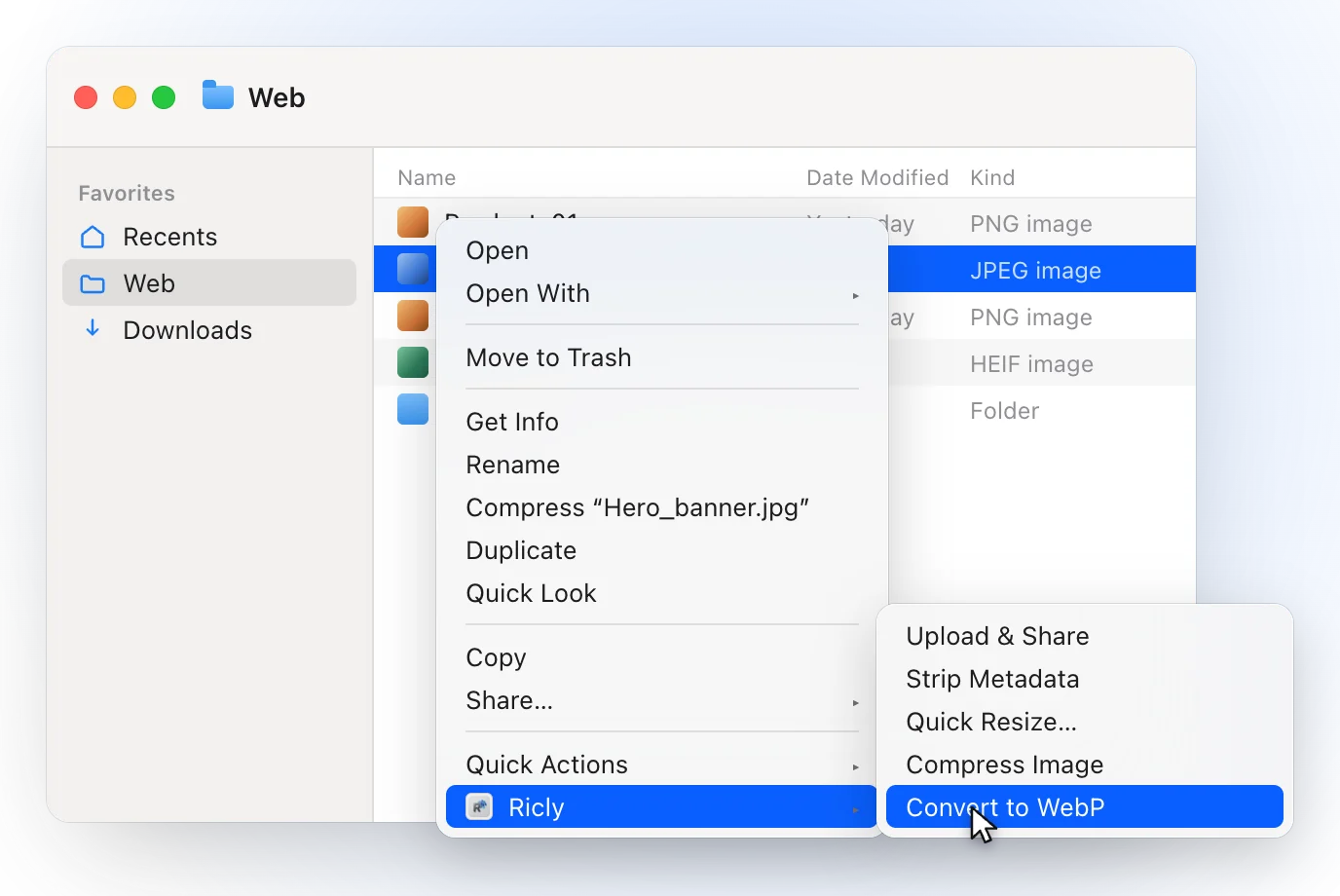
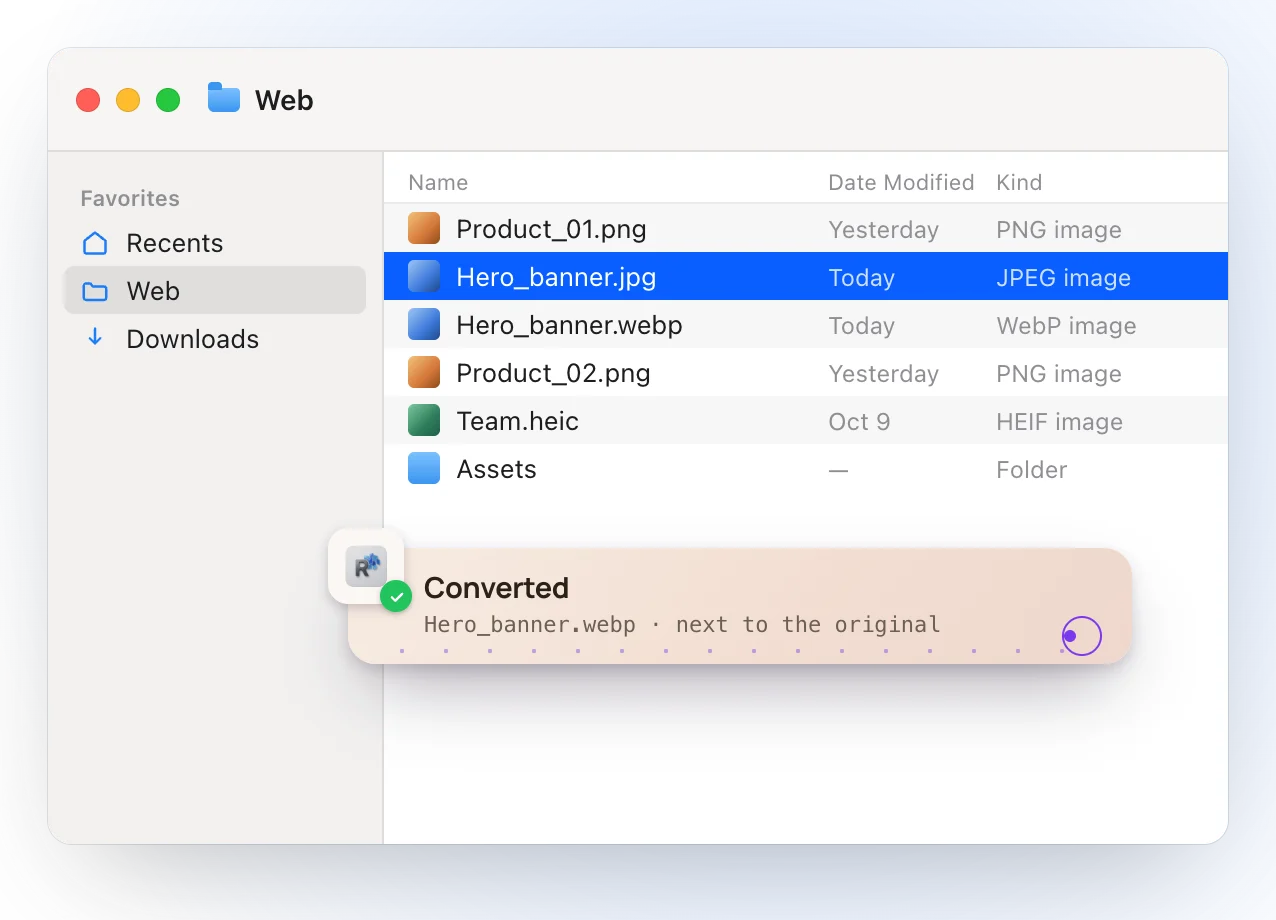
- It runs cwebp 1.6.0, from Google’s WebP project, which ships inside the app: nothing to install.
- Quality 85, the same for every file and every plan.
- A transparent PNG stays transparent, and a photo shot sideways comes out upright.
- Each WebP lands beside its original, which is never touched; a taken name gets a numbered file.
- No monthly limit, and everything happens on your Mac.
Where it falls short. It takes JPG, PNG, HEIC, TIFF and BMP. There’s no quality setting and no lossless mode, and the WebP carries no date, camera or location data and no embedded color profile. It needs macOS 13 or later.
How much smaller is a WebP?
It depends on the picture. With Google’s encoder at quality 85, the setting Ricly uses, our test photo went from a 1.71 MB JPEG to a 468 KB WebP, a 516 KB PNG product shot to 51 KB, and a transparent 51 KB logo to 11.5 KB, all at the same dimensions. Quality 85 is lossy, so keep your originals.
Convert WebP to JPG or PNG (built in)
In Preview: open the WebP, choose File › Export, set Format to JPEG or PNG, then click Save.
In the Terminal: for a PNG, use -s format png instead.
sips -s format jpeg image.webp --out image.jpg
We tried both on macOS 15.7: the JPG kept its 2400 × 3600 pixels, and the PNG kept the logo’s transparency.
With Ricly: right-click the WebP and choose Convert to JPG: the JPG lands beside it, at quality 0.92, and a transparent WebP lands on white.
Steps from Apple’s Preview guide: Convert image file types.
Which one should you use?
Converting images to WebP on a Mac: common questions
Can Preview save an image as WebP?
Apple lists Preview’s export formats as HEIC, JPEG, JPEG-2000, OpenEXR, PDF, PNG and TIFF. On macOS 15.7, the system’s image engine doesn’t write WebP either: we checked. cwebp in the Terminal or Ricly make the WebP.
How do I convert PNG to WebP in the Terminal?
Install Google’s WebP tools (with Homebrew: brew install webp), then run cwebp -q 85 image.png -o image.webp, or add -lossless for an exact copy.
How do I convert WebP to JPG on a Mac?
Open it in Preview, choose File › Export and pick JPEG. In the Terminal, sips -s format jpeg image.webp --out image.jpg does it. With Ricly, right-click the WebP and choose Convert to JPG.
Does WebP keep transparency?
Yes: our transparent PNG logo kept its transparency as a WebP, and sips kept it again turning the WebP back into a PNG.
Does converting to WebP lose quality?
At a quality setting, yes: WebP is then a lossy format, like JPEG. cwebp’s -lossless keeps a PNG exact. Ricly always uses quality 85.
Can I convert a HEIC photo to WebP?
With Ricly, yes: right-click the HEIC and choose Convert to WebP. In the Terminal, cwebp doesn’t read HEIC (we tried): export the photo to JPG first, then run cwebp.
Is there a free WebP converter for Mac?
cwebp is free, and Ricly’s Convert to WebP is free with no monthly limit.
Image to WebP in Ricly →Compress images on a Mac →Convert HEIC to JPG on a Mac →