
Short answer
Shortcuts includes a Combine Images action that puts pictures side by side, one above the other, or in a grid, with the spacing you set. Keynote works too: drop the photos on a slide, arrange them, then choose File › Export To › Images. Ricly makes the sheet from the right-click menu.
Rather pick a ratio, a background and the order, with a preview? See how Ricly does it ↓
Three ways at a glance
| Method | Where | Layouts | Spacing and background | Price |
|---|---|---|---|---|
| Shortcuts | A shortcut with Combine Images | Horizontally, vertically or in a grid | Spacing in pixels, transparent | Built in |
| Keynote | A slide, then File › Export To › Images | Anything you place by hand | Whatever you set on the slide | Free from Apple |
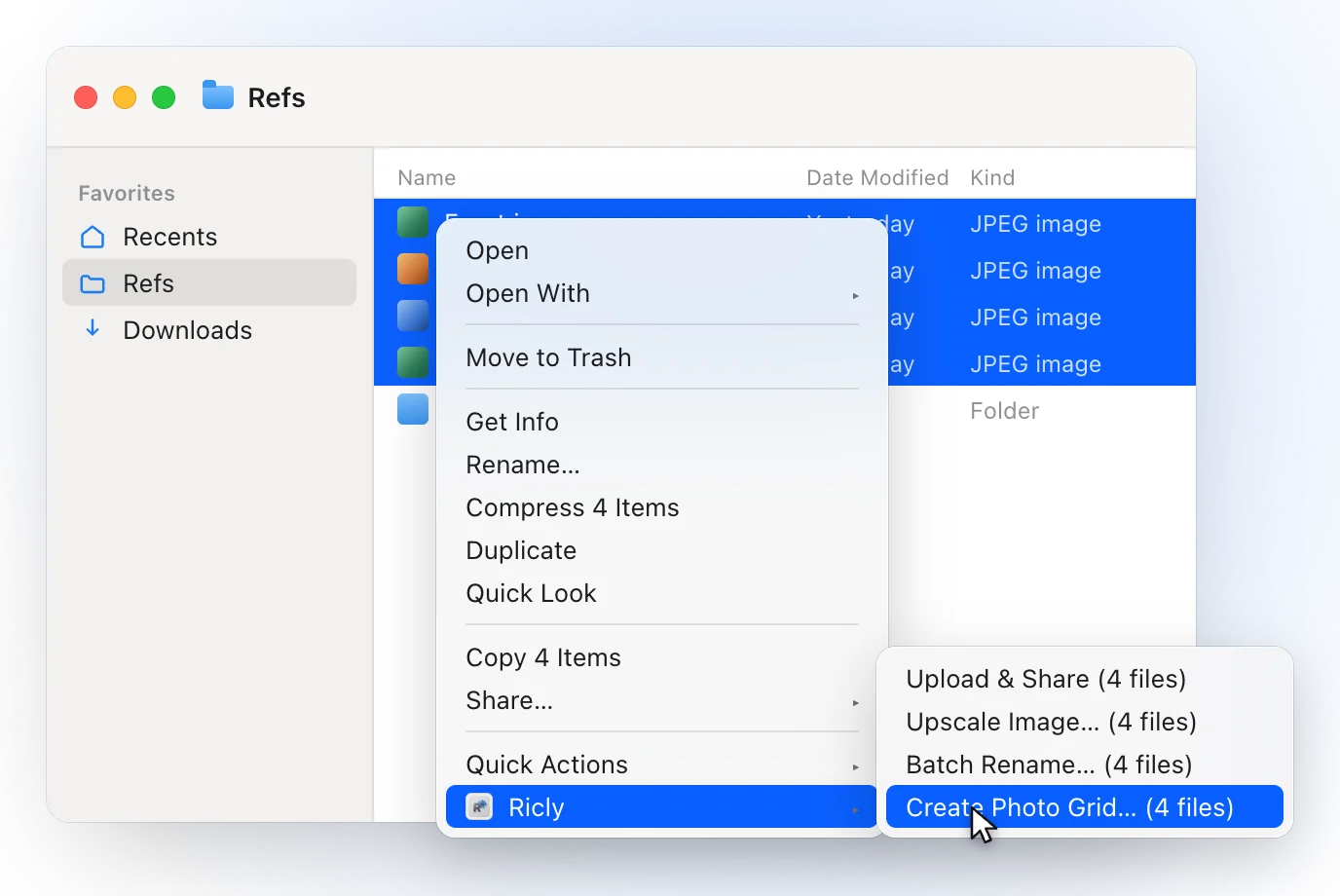
 Ricly Ricly | Right-click › Ricly › Create Photo Grid… | Row, column or grid, 2 to 6 photos, slot ratio 1:1, 4:5, 16:9, 9:16 or each photo’s own | 0 to 32 px; white, black, transparent or a color | Pro |
Combine photos with Shortcuts (built in)
Shortcuts on macOS 15.7 includes a Combine Images action. Its Mode can be Horizontally, Vertically or In a Grid, and its Spacing is the number of pixels of transparent space placed between the images. Build it into a shortcut that runs on the photos you select.
Make a photo collage in Keynote (free from Apple)
- Create a presentation in Keynote and drag the photos onto a slide.
- Arrange and resize them where you want.
- Choose File › Export To › Images, choose the slide, then pick an image format.
Apple notes that a higher image quality makes a larger file.
Steps from Apple: Export to PowerPoint or another file format in Keynote on Mac.
The right-click way
Combine photos with Ricly
- Install Ricly and open it. Turn on the Finder extension when it asks (one setting), create your free account, then switch to Pro and, in Ricly › Modules, click Enable on Photo Grid.
- In Finder, select two to six photos and right-click: choose Ricly › Create Photo Grid….
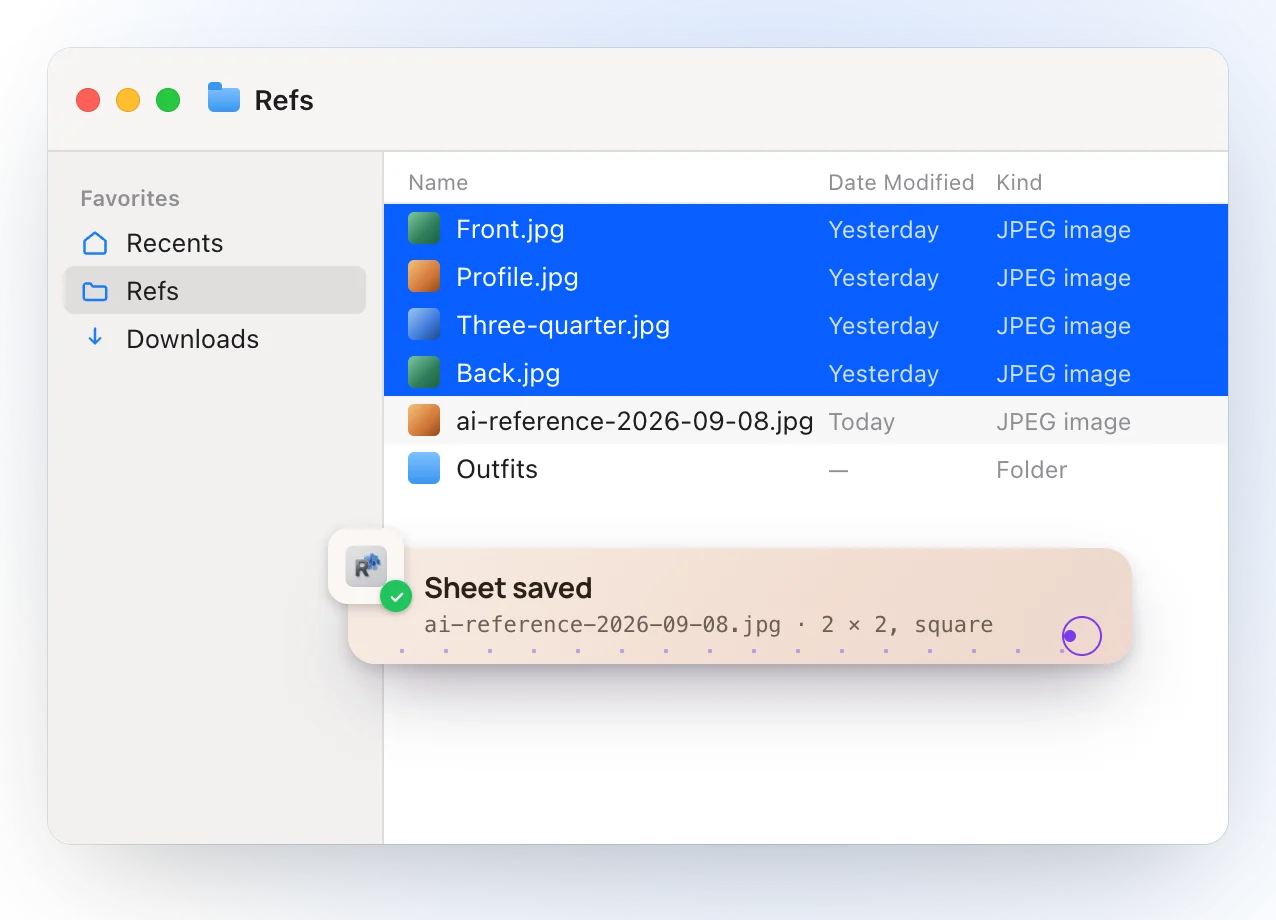
- Pick a preset or set the layout, the ratio, the background and the spacing, drag the photos into order, and the sheet lands beside them.
- Row, column or grid, from two to six photos.
- Each slot is 1:1, 4:5, 16:9 or 9:16, or keeps each photo’s own ratio; the photos are fitted inside, never cropped.
- A white, black, transparent or custom background, and 0 to 32 pixels between slots.
- You drag the photos into the order you want, and see the sheet before it’s written.
- Presets for an AI reference plate, a before and after, a product sheet and an Instagram carousel.
- The sheet is named after the preset and the date, like ai-reference-2026-09-08.jpg: a JPEG at quality 0.92, or a PNG when the background is transparent. A name already taken gets -a, -b and so on.
- Everything happens on your Mac.
Where it falls short. It’s a Pro tool. It takes six photos at most. It needs macOS 13 or later.
Side by side or in a grid?
Two photos read best side by side: a before and after, two versions of a design. Three or more read best in a grid or a column. In Shortcuts, that’s the Combine Images mode; in Ricly, it’s the layout, and the slot ratio decides how much background shows around photos of different shapes.
Which one should you use?
Combining photos on a Mac: common questions
How do I combine two photos side by side on a Mac?
In Shortcuts, use the Combine Images action with its mode set to Horizontally. In Ricly, select both photos, right-click, choose Create Photo Grid… and pick a row layout.
How do I make a photo collage on a Mac for free?
Shortcuts’ Combine Images action is built in, and Keynote is free from Apple: place the photos on a slide and export it as an image. Ricly’s Photo Grid is a Pro tool.
Can I put a space or a border between the photos?
In Shortcuts, Spacing sets the pixels of transparent space between images. In Ricly, set 0 to 32 pixels between slots and choose the background color.
Can I make a grid with a transparent background?
In Ricly, choose the transparent background: the sheet comes out as a PNG.
How many photos can I combine?
Ricly takes two to six. Apple doesn’t give a limit for Shortcuts’ Combine Images.
Are my photos uploaded anywhere?
Not with Ricly: the sheet is drawn on your Mac.
What size is the finished sheet?
In Ricly, each slot is as large as the biggest photo you selected, so the largest one is never scaled down. A smaller photo is scaled up to fill its slot, so it can look softer next to the others: pick photos of similar size for a sharp sheet.
Photo Grid in Ricly →Resize images on a Mac →Remove a background on a Mac →