
Short answer
Select the files in the Finder, Control-click one of them and choose Rename. Under Rename Finder Items, choose Replace Text, Add Text or Format (a name with an index, a counter or a date), then click Rename. Automator, Shortcuts and the Terminal can do it too.
Need a pattern, a live preview or the date a photo was taken? See how Ricly does it ↓
Five ways at a glance
| Method | Where | What it can do | Preview | Price |
|---|---|---|---|---|
| Finder | Control-click › Rename | Replace text, add text, or a name with an index, a counter or a date | Not described by Apple | Built in |
| Automator | A Quick Action with Rename Finder Items | The same kinds of change, saved to run again | When you build it | Built in |
| Shortcuts | A shortcut with Rename File | Whatever you build around it | When you build it | Built in |
| Terminal | A zsh loop, or zmv | Anything you can script | None | Built in |
 Ricly Ricly | Right-click › Ricly › Batch Rename… | A pattern with a counter, dates, the date a photo was taken, find and replace with regex, case modes | Every new name, live | Pro |
Batch rename files in the Finder (built in)
- Select the files, then Control-click one of them.
- Choose Rename.
- Under Rename Finder Items, choose Replace Text, Add Text or Format.
- Fill in the fields, then click Rename.
Replace Text swaps what you type in Find for what you type in Replace with. Add Text puts your text before or after the current name. Format gives each file a name you choose, with an index, a counter or a date before or after it, starting from the number you enter.
Steps from Apple: Rename files, folders, and disks on Mac.
Batch rename files with Automator (built in)
- Open Automator, choose File › New, select Quick Action, then click Choose.
- Add the Rename Finder Items action. Automator offers to add Copy Finder Items so that copies are changed and your originals are preserved: click Don’t Add to rename the files themselves.
- Set the change, then choose File › Save and give it a name.
To use it, select files in the Finder, Control-click, and choose it under Quick Actions.
Steps from Apple’s Automator guide: Use Quick Action workflows on Mac.
Batch rename files with Shortcuts (built in)
Shortcuts on macOS 15.7 includes a Rename File action, which you can build into a shortcut that runs on the files you select.
Batch rename files in the Terminal
In the folder, this zsh loop numbers every JPG, in numeric order, and never overwrites an existing file:
n=1; for f in *.jpg(n); do mv -n -- "$f" "photo-$(printf %03d $n).jpg"; n=$((n+1)); done
We tried it on macOS 15.7: IMG_1, IMG_2, IMG_3 and IMG_10 became photo-001 to photo-004, in that order. Without (n), zsh sorts the names as text, and IMG_10 came out as photo-002.
To change one part of every name, zsh’s zmv does it in one line. This turned “scan 1.JPEG” into “scan 1.jpg”:
autoload -U zmv; zmv '(*).JPEG' '$1.jpg'
The right-click way
Batch rename files with Ricly
- Install Ricly and open it. Turn on the Finder extension when it asks (one setting), create your free account, then switch to Pro and, in Ricly › Modules, click Enable on Batch Rename.
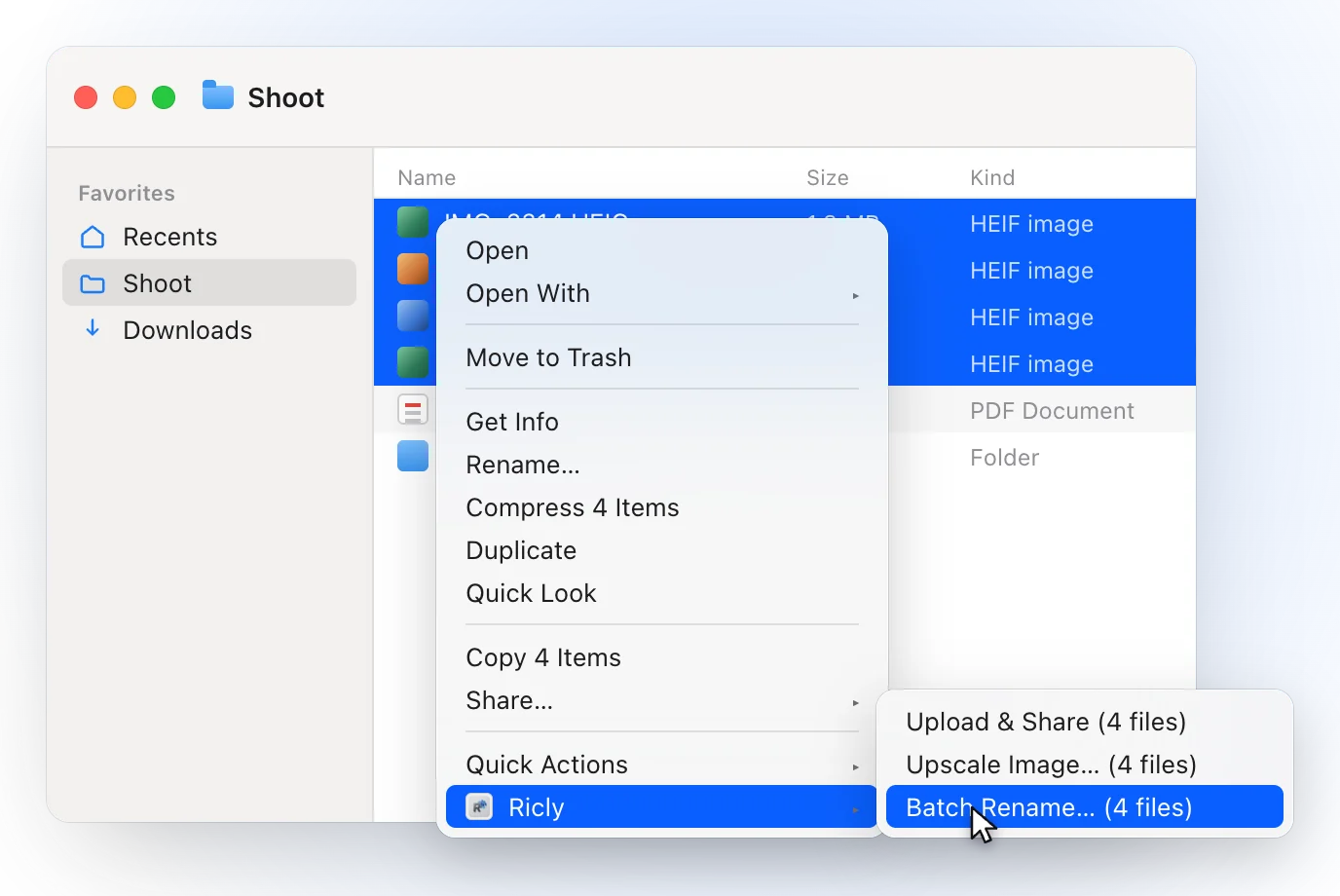
- In Finder, select the files and right-click: choose Ricly › Batch Rename….
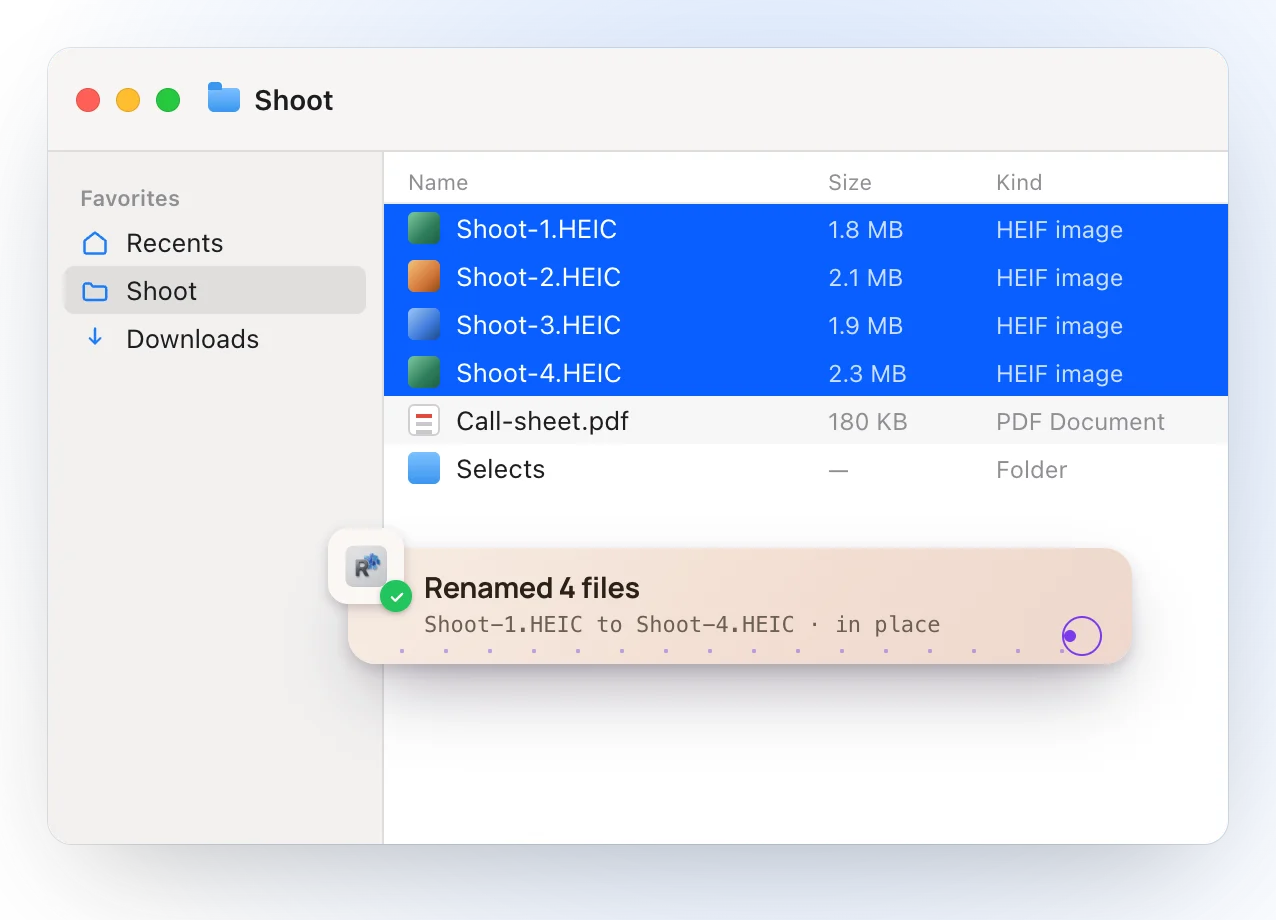
- Write the pattern and check the live preview, then click Rename.
- A pattern with tokens: {name} for the original name, {n} for a counter that pads itself to the batch (01 to 12, or 001 to 200), {ext}, {date} and {Y}, {M}, {D} for the modification date, and {taken} for the day a photo was taken.
- Find and replace inside the names, with regex when you need it, and case modes: lower, upper or title.
- A live preview shows the new names before anything is renamed.
- Files are renamed where they are: nothing is copied or moved. If a name is taken, the file gets “ 2”, “ 3” and so on.
- If any file can’t be renamed, every name goes back to what it was.
- Everything happens on your Mac.
Where it falls short. It’s a Pro tool. There is no Undo button once a rename has gone through, so check the preview first. It needs macOS 13 or later.
Rename photos by the date they were taken
In Ricly, the Photos by date taken presets name each photo after the day it was taken, read from the camera’s EXIF data, with a counter numbered oldest first, with the time, or with the original name, like 2024-06-12 14-03-09.jpg. A file without that data falls back to its file date. Apple’s page doesn’t say which date the Finder’s Format option adds.
Which one should you use?
Batch renaming files on a Mac: common questions
How do I rename multiple files at once on a Mac?
Select them in the Finder, Control-click one and choose Rename, then choose Replace Text, Add Text or Format and click Rename. With Ricly, right-click, choose Batch Rename… and write a pattern.
How do I add numbers to file names on a Mac?
In the Finder’s Rename, choose Format and put a counter or an index before or after the name, starting from the number you enter. In Ricly, put {n} in the pattern: the counter pads itself to the size of the batch.
Can I batch rename files in the Terminal?
Yes. A zsh loop with mv -n renames without overwriting, and *.jpg(n) keeps numeric order; zsh’s zmv changes one part of every name in one line.
Can I rename photos by the date they were taken?
With Ricly, yes: the Photos by date taken presets read the date from the camera’s EXIF data. Apple’s page doesn’t say which date the Finder’s Format option adds.
Can I undo a batch rename?
Apple’s page doesn’t describe an undo for the Finder’s Rename; it suggests changing a name back if you run into problems. Ricly has no Undo button after a rename either, so check its live preview first; if any file can’t be renamed, Ricly puts every name back.
Will renaming break my files?
Apple notes that changing a filename extension, like .jpg, can stop a file from opening in the app that made it. Ricly keeps the extension unless your pattern changes it.
Is there a free way to batch rename files on a Mac?
Yes: the Finder, Automator, Shortcuts and the Terminal are built in. Ricly’s Batch Rename is a Pro tool.
Batch Rename in Ricly →Find duplicate files on a Mac →Remove metadata from photos on a Mac →