
Short answer
The built-in way is the Music app: choose Music › Settings, click Files, then Import Settings, and set Import Using to MP3 Encoder. Add the WAV to your library, then choose File › Convert › Create MP3 Version. Finder and QuickTime Player encode audio to M4A.
Rather do it from the right-click menu, with the MP3 next to the original? See how Ricly does it ↓
Three ways at a glance
| Method | Where | Bitrate | Where the MP3 goes | Many files | Price |
|---|---|---|---|---|---|
| Music app | Music’s File menu | You choose, up to 320 kbps | Your Music library | Select several songs | Built in |
| Terminal | A command, after installing LAME or ffmpeg | You choose | Where you tell it | With a script | Free tools |
 Ricly Ricly | Right-click in Finder | 320 kbps, constant | Next to the original | Select them all, right-click once | Free, no monthly limit |
Convert WAV to MP3 with the Music app (built in)
- Choose Music › Settings, click Files, then click Import Settings.
- In the Import Using menu, choose MP3 Encoder and a quality setting, then click OK.
- Add the WAV to your library (File › Add to Library).
- Select it, then choose File › Convert › Create MP3 Version.
Steps from Apple’s guide: Convert music file formats in Music on Mac.
What it does. Music encodes the song to MP3 at the setting you chose, up to 320 kbps. The song in its original format and the new MP3 both appear in your library. To find the file, right-click the MP3 in Music and choose Show in Finder.
Where it falls short. Everything goes through your library: the WAV is added to it, and the MP3 lands in it. For a bounce you only wanted to send, that’s two extra songs to clean up. For FLAC, see below.
What Finder and QuickTime make: M4A
Finder has a right-click service, Encode Selected Audio Files. It takes WAV, AIFF and CAF, and makes M4A files: High Quality, iTunes Plus, Apple Lossless or Spoken Podcast.
QuickTime Player can export a file’s sound with File › Export As › Audio Only, which gives you an Apple device audio file (M4A).
Both help when you need an M4A. For an MP3, use one of the three ways on this page.
Convert WAV to MP3 in the Terminal
macOS includes a command-line audio converter, afconvert, but it doesn’t write MP3: we tried on macOS 15.7 and it refused. Command-line guides install an encoder first, such as LAME or ffmpeg (with Homebrew, for example). With LAME installed, one file is:
lame -b 320 input.wav output.mp3
It’s free and scriptable, if you’re comfortable in the Terminal.
Convert AIFF or FLAC to MP3
AIFF works like WAV. In the Music app, add it to your library and choose File › Convert › Create MP3 Version, with MP3 Encoder set in Import Settings. In Ricly, right-click the AIFF and choose Convert to MP3: the MP3 lands next to it.
FLAC. The file types the Music app declares on macOS 15.7 include WAV, AIFF, MP3 and M4A, but not FLAC. Ricly converts FLAC from the right-click menu, at the same constant 320 kbps, and so does ffmpeg once installed:
ffmpeg -i input.flac -b:a 320k output.mp3
A folder of FLAC files: select them in the Finder and right-click once with Ricly; with ffmpeg, loop over the folder in a script.
The right-click way
Convert WAV to MP3 with Ricly
- Install Ricly and open it. Turn on the Finder extension when it asks (one setting), then create your free account and verify your email.
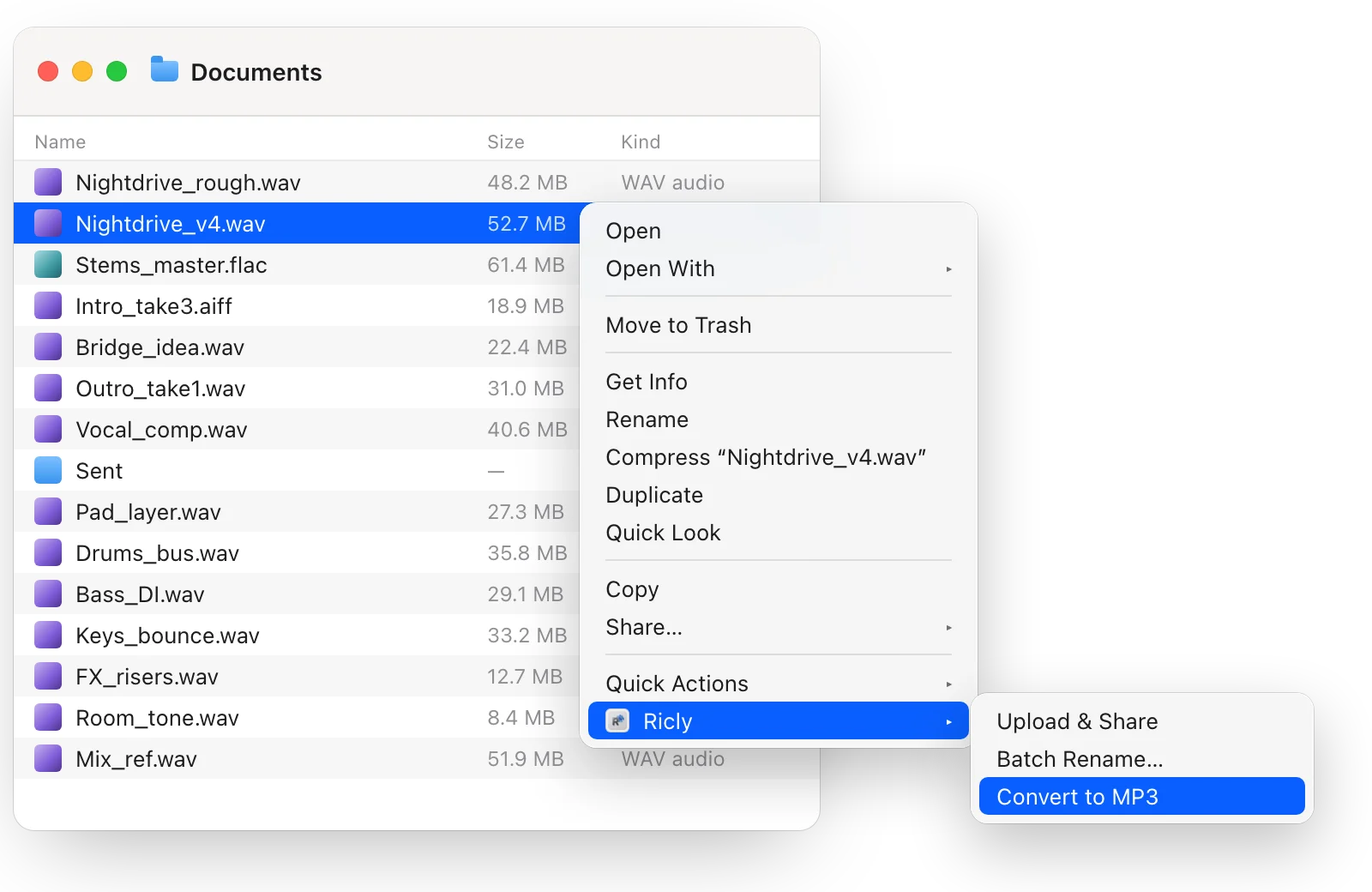
- In Finder, right-click the WAV and choose Ricly › Convert to MP3.
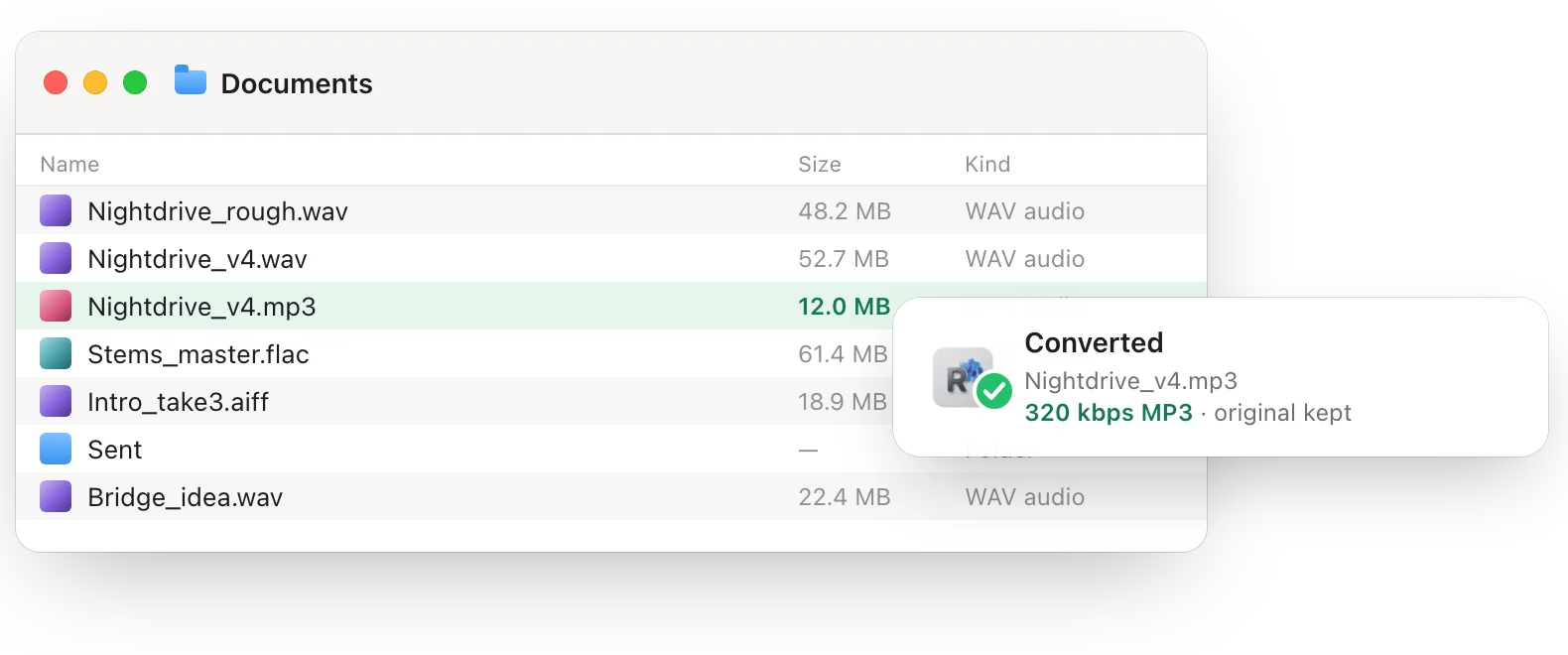
- The MP3 lands next to the original, with the same name.
What Ricly does.
- A constant 320 kbps, the highest bitrate MP3 allows, not a variable average.
- The MP3 lands next to the original, with the same name. Your WAV is never modified, moved or deleted.
- It never overwrites an MP3 that’s already there: you get a numbered file instead.
- WAV, AIFF, FLAC, M4A, AAC, CAF and M4V all work.
- Everything happens on your Mac. Nothing is uploaded.
Where it falls short. It doesn’t copy ID3 tags or artwork, so tag the MP3 after converting if you release it. It needs macOS 13 or later.
Convert many WAV, AIFF or FLAC files to MP3 at once
In Finder, open the folder, select the files (⌘A selects them all) and right-click once: the menu reads Convert to MP3 (20 files). Ricly encodes two at a time, and each file gets its own MP3. In the Music app, you can select several songs in your library before choosing Create MP3 Version.
Which one should you use?
Converting WAV to MP3 on a Mac: common questions
Can Finder convert WAV to MP3?
Its Encode Selected Audio Files service makes M4A files. For an MP3, use the Music app, the Terminal with an encoder installed, or Ricly.
How do I convert M4A to MP3 on a Mac?
The same way: in the Music app, open Import Settings, set Import Using to MP3 Encoder, then choose File › Convert › Create MP3 Version. With Ricly, right-click the M4A and choose Convert to MP3. Ricly doesn’t copy tags or artwork, so a tagged M4A loses them. The full guide: Convert M4A to MP3 on a Mac.
How do I convert FLAC to MP3 on a Mac?
Right-click the FLAC with Ricly and choose Convert to MP3, or use ffmpeg in the Terminal. FLAC isn’t among the file types the Music app declares on macOS 15.7.
How do I convert AIFF to MP3 on a Mac?
Like a WAV: in the Music app, add it to your library and choose File › Convert › Create MP3 Version, or right-click it with Ricly and choose Convert to MP3.
Is there a free WAV to MP3 converter for Mac?
Yes: the Music app is built in, and Ricly’s Audio to MP3 is free with no monthly limit.
What bitrate should I use?
320 kbps is the most MP3 allows. Ricly always encodes at a constant 320 kbps; in the Music app you pick the bitrate in Import Settings.
Does converting to MP3 lose quality?
Yes, a little: MP3 is a compressed format. Keep your WAV as the master and send the MP3.
Audio to MP3 in Ricly →Find duplicate bounces →Send it as a link →